Showing posts with label Visual Studio. Show all posts

January 28, 2024

git shows files as modified after adding to .gitignore

In Visual Studio, once the .Net project is setup with git, you might notice that it will keep track for extra files, like autogenerated files in obj/debug folders.

You can ignore these selected folders/files by using .gitignore file.

To ignore debug, release, bin and obj folders etc., you can make these entries in .gitignore file.

[Dd]ebug/
[Rr]elease/
[Bb]in/
[Oo]bj/

After settings these changes you might notice that git is still tracking the files in these folders.

The reason is that these are the changes before the .gitignore file is updated.

To fix this issue you need to removes all files that have been cached (as being 'tracked'), then re-add files based on the .gitignore file entries.

Here are the steps, notice the dot (.) in the end of first 2 commands, this . is part of command syntax:

  • Remove all files recursively from index that are cached (being tracked).
    git rm -r --cached .
    

    rm is to remove files, -r is to remove recursively.

  • Add all files that have changed (re-add the files). This command will add all files except those which are mentioned in .gitignore.
    git add .
    
  • This command will commit your files again and remove the files you want to ignore, but keep them in your local directory.
    git commit -am "Remove ignored files"
    

December 26, 2023

Serialize with System.Text.Json.JsonSerializer

The System.Text.Json namespace provides functionality for serializing to and deserializing from JavaScript Object Notation (JSON). When serializing C# objects to json, by default all public properties are serialized.

Lets say we have this User class object we want to serialize:

 class User
 {
     public int Id { get; set; }
     public string Name { get; set; }
     public string? Email { get; set; }
     public string Password { get; set; }
 }

var obj = new User
 {
     Id = 1,
     Name = "Idrees",
     Email = null,
     Password = "123"
 };

If we serialize this object:

string txtJson = Json.JsonSerializer.Serialize(obj);

We will get the this json:

{"Id":1,"Name":"Idrees","Email":null,"Password":"123"}

If we want to skip the Password property, we can use the attribute [JsonIgnore] on that property.

After this change the User class will look like this:

 class User
 {
     public int Id { get; set; }
     public string Name { get; set; }
     public string Email { get; set; }
     [JsonIgnore]
     public string Password { get; set; }
 }

Serializing now will give you this result:

{"Id":1,"Name":"Idrees","Email":null}

Notice that the Password property is no longer serialized.

You can also specify the condition for exclusion by setting the [JsonIgnore] attribute's Condition property.

In above example, we have set the null value for Email property and it is showing null in serialized json text.

To exclude that property we can specify the condition to ignore when it has null value. After this change the User class will become like this:

 class User
 {
     public int Id { get; set; }
     public string Name { get; set; }
     [JsonIgnore(Condition = JsonIgnoreCondition.WhenWritingNull)]
     public string? Email { get; set; }
     [JsonIgnore]
     public string Password { get; set; }
 }

The serialization will remove the Email property and generate this json.

{"Id":1,"Name":"Idrees"}

References:

Repeat a String in C#

C# do not have built-in function, as of C# 12.0, to repeat a string for x number of times.

Lets say we have a string variable:

	string text = "-"; //the string we need to repeat
	int n = 5; // number-of-times to repeat

Here are some ways you can use to repeat a string value:

Using Enumerable.Repeat and string.Concat:

	string result1 = string.Concat(Enumerable.Repeat(text, n));

Using StringBuilder:

	string result2 = new StringBuilder().Insert(0, text, n).ToString();

Using Enumerable.Range, Select with string.Concat

	var repeatedStrings = Enumerable.Range(0, n).Select(i => text);
	string result3 = string.Concat(repeatedStrings);

Using String() constructor

If the required string is single character, you can also use String constructor.

	string result4 = new String('-', n);

November 28, 2023

C# Caller Argument Expression Attribute

The System.Runtime.CompilerServices.CallerArgumentExpressionAttribute enables you to receive the expression passed as an argument. It captures the expression passed for another parameter as a string.

This would be helpful specially in diagnostic libraries which need to provide more details about the expressions passed to arguments. By providing the expression that triggered the diagnostic, in addition to the parameter name, developers have more details about the condition that triggered the diagnostic.

Lets say we have this method to log the method name.

public static void LogMethodName(string name, 
                 [CallerArgumentExpression("name")] string? message = null)
{
   if (string.IsNullOrEmpty(name))
   {
      //we are printing the 'message' which represents the actual expression 
      //being passed for parameter 'name'
      throw new ArgumentException($"Argument validation: <{message}>", name);
   }

   Console.WriteLine($"Method {name} is called.");
}

Here we are calling above method:

public static void RegisterUser()
{
    LogMethodName(nameof(RegisterUser));
}

In RegisterUser method, we are calling LogMethodName with the value as name of RegisterUser. The expression used for name parameter, is injected by the compiler into the message argument.

In this example, the expression passed for the name parameter is nameof(RegisterUser), so the value of message parameter in LogMethodName is "nameof(RegisterUser)"

References:

C# documentation comments - para and cref

C# documentation comments use XML elements to define the structure of the output documentation. It helps to write the information about code and makes it more readable and understandable.

<para> tag

The <para> tag can be used inside a tag, such as <summary>, <remarks>, or <returns>. It allows you to add structure to the text.

Here the <para> is used to add another line (paragraph) in the summary section.

/// <summary>
/// This property will keep the type of project.
///     <para>
///         The Type of project defined in the document.
///     </para>
/// </summary>
public string ProjectType { get; set; }

It will display this information on mouse hover like this:

cref attribute

The cref attribute in an XML documentation tag means "code reference." It specifies that the inner text of the tag is a code element, such as a type, method, or property.

Here the cref attribute is referencing another class which contains constant string values.

/// <summary>
///     <para>
///         Use <see cref="MyNamespace.ProjectStatus"/> class.
///     </para>
/// </summary>
public string Status { get; set; }

On mouse hover it will display like this:

Note that the ProjectStatus will appear as link, and will take you to the definition of class when clicked.

References:

July 24, 2023

MSB3037 - NSwag- openapi2csclient exited with code -1

I was working with Visual Studio 2022 (Version 17.6.5). The project has consumed the nuget package for NSwag.ApiDescription.Client (version 13.19.0). It was working fine.

When I moved the project to another machine, it starts generating this error on Rebuild:

The command ""C:\Users\x\source\repos\G21-V5-Web\packages_rep\nswag.msbuild\13.0.5\build\
../tools/Win/NSwag.exe" 
openapi2csclient /className:ServiceClient /namespace:MyService 
/input:C:\Users\x\source\repos\G21-V5-Web\swagger.json /output:obj\swaggerClient.cs " 
exited with code -1.

I found out the root cause in my case was the whitespaces in the path to the project.

We need to fix in the file:

C:\Users\x\source\repos\G21-V5-Web\packages_rep\nswag.apidescription.client\13.0.5
\build\NSwag.ApiDescription.Client.targets

You will find line # 21 similar to this:

    <Command>%(Command) /input:%(FullPath) /output:%(OutputPath) %(Options)</Command>

To make swagger work with whitespaces, change this line by adding double quotes around the path:

    <Command>%(Command) /input:"%(FullPath)" /output:"%(OutputPath)" %(Options)</Command>

My project works fine after this fix.

January 24, 2023

C# Yield Return & Break Statements

The yield keyword makes the method (in which it appears) as an iterator block. An iterator block, or method, will return an IEnumerable as the result. Within this iterator block or method, we will use the yield keyword to return the values for the IEnumerable.

Note that IEnumerable is lazily evaluted. If you call a method with an iterator block (with yield keyword), it will not run any code until we actually access the IEnumerable result values.

Lets see an exmaple.

Usually you may find code similiar to this where we are creating a temp list to hold the items, and at the end return the list from a method:

public IEnumerable<int> MyList()
{
	List<int> list = new List<int>();
	list.Add(1);
	list.Add(2);
	list.Add(3);
	list.Add(4);
	list.Add(5);

	return list;
}

You can simplify the method using the yield return statement, it allows us to remove the intermediate/temporary list required to hold the values.

public IEnumerable<int> MyList()
{
	yield return 1;
	yield return 2;
	yield return 3;
	yield return 4;
	yield return 5;
}

This method will return the same list of intergers but it does not need a temporary list to hold values.

You can use the yield break statement to explicitly stop the current iteration and cancel the iterator block. In this case it will return all these values which are produced with yield return statement. Once it reaches the yield break statement, it will stop producing any further value and exit the iterator block.

Lets see this example:

public static IEnumerable<int> MyList()
{
	yield return 1;
	yield return 2;
	yield break;
	yield return 3;
	yield return 4;
	yield return 5;
}

This method will only produce two values 1 and 2. Once it reaches the yield break statement, it will exit from the iterator block.

Typically you would do this when a certain condition is met, you only want to return a specific set of values from the iterator block.

Let see this example:

IEnumerable TakeWhilePositive(IEnumerable<int> numbers)
{
    foreach (int n in numbers)
    {
        if (n > 0)
        {
            yield return n;
        }
        else
        {
            yield break;
        }
    }
}

If you call this method like:

foreach (var item in TakeWhilePositive(new[] { 1, 2, 3, -1, 4, 5}))
{
	Console.WriteLine(item);
}

It will print the values from given array as:

1
2
3

Once it found a negative value, the iteration loop will be stopped and control is returned to the caller method.

References:

August 17, 2021

Publish .NET Core Worker Service

In the last post we have created a new Worker Service Project, now we will publish that as a single exe file.

To host the .NET Worker Service app as a Windows Service, it will need to be published as a single file executable.

Before moving forward to publish to project, make sure you have installed the following Nuget Packages for .Net Core 3.1.

  • Install-Package Microsoft.CodeAnalysis.Common -Version 3.11.0
  • Install-Package Microsoft.Extensions.Hosting -Version 3.1.17
  • Install-Package Microsoft.Extensions.Hosting.WindowsServices -Version 3.1.17

If you are using some later version of .Net Core, you may need to change the version of these Nuget Packages.

To publish our .Net Worker Service project as a single file exe, we have to make some changes in WorkerService1.csproj file.

Right click on the project and select Edit Project File.

Add the following childe nodes inside PropertyGroup node.

  • <OutputType>exe</OutputType>
  • <PublishSingleFile>true</PublishSingleFile>
  • <RuntimeIdentifier>win-x64</RuntimeIdentifier>
  • <PlatformTarget>x64</PlatformTarget>
  • <IncludeNativeLibrariesForSelfExtract>true</IncludeNativeLibrariesForSelfExtract>

Here is the description of each line (Credits Microsoft Docs ).

  • <OutputType>exe</OutputType>: Creates a console application.
  • <PublishSingleFile>true</PublishSingleFile>: Enables single-file publishing.
  • <RuntimeIdentifier>win-x64</RuntimeIdentifier>: Specifies the RID of win-x64.
  • <PlatformTarget>x64</PlatformTarget>: Specify the target platform CPU of 64-bit.
  • <IncludeNativeLibrariesForSelfExtract>true</IncludeNativeLibrariesForSelfExtract>: Embeds all required .dll files into the resulting .exe file.

To publish the project from Visual Studio wizard, you need to create a publish profile.

Right click on the project and select Publish...

Select Add a publish profile, Publish dialog will apear, select Folder from the Target tab, and click Next.

In Folder location textbox set the target path where you want to publish the output content.

Click Next, and it will display the Publish profile view.

Select Show all settings link. Profile settings dialog will appear.

Change the Deployment mode to Self-Contained.

Under File publish options, select all the CheckBoxes as true:

  • Produce single file
  • Enable ReadyToRun compilation
  • Trim unused assemblies (in preview)

Click Save button on the Profile settings dialog.

Finally, click the Publish button. It will rebuild the project, and the resulting exe file will be published to the /publish output directory.

Alternatively, you could use the .NET CLI to publish the app, run this command from project root directory:

dotnet publish --output "C:\MyPath\PublishedOutput"

After the publish operation succeeded, it will generate files similar to the following:

We have published Worker Service project in a single exe file. Next step is to host this exe as a Windows Service, which will be covered in the next post.

References:

Related Post(s):

August 18, 2020

Conditionally run a target for publish profile

In the last post we have seen how to write custom actions for BeforePublish and AfterPublish events. In this post we will take one more step towards customizing the action execution. Occasionally we need to perform custom actions like copying files to output folder but with some condition, like if a particular directory not already exists in the output or could be any other condition etc.

In this post we are not the exploring capability of actions you can perform with target tag but will see how you can add conditions with Target tag. So I will simply write custom messages to the console with different conditions.

The following Target tag outputs the text message to console based on the condition specified in Condition attribute. Here we are checking if the $(MSBuildProjectDirectory)\MyData folder exists, if so, then it will output a text message to the console otherwise it will do nothing.

<Target Name="CustomActionsAfterPublish" AfterTargets="AfterPublish" Condition="Exists('$(MSBuildProjectDirectory)\MyData')">
   <Message Text="Some text to the console" Importance="high" />
</Target>

Here we have used MSBuild reserved property MSBuildProjectDirectory which represents the absolute path of the directory where the project file is located, and then we are checking if a folder named MyData exists in that location.

Obviously you are not going to check for this condition in real project but this is just to demonstrate that you can use the Exists operrator in Condition attribute to check for a folder exists. You can reverse the same condition by using the ! operator to check if folder not exists.

<Target Name="CustomActionsAfterPublish" AfterTargets="AfterPublish" Condition="!Exists('$(MSBuildProjectDirectory)\MyData')">
   <Message Text="Some text to the console" Importance="high" />
</Target>

Another operator you can use in Condition attribute is == operator. For exmaple may want to check if the current publish profile's configuration is DEBUG then you want to run the target action. You can write this condition as follows:

<Target Name="CustomActionsAfterPublish" AfterTargets="AfterPublish" Condition="'$(Configuration)'=='DEBUG'">
   <Message Text="Some text to the console" Importance="high" />
</Target>

Here we have used MSBuild project property Configuration which contains the configuration value you specified in your publish profile.

Similary you can use != operator to check for inequality.

<Target Name="CustomActionsAfterPublish" AfterTargets="AfterPublish" Condition="'$(Configuration)'!='DEBUG'">
   <Message Text="Some text to the console" Importance="high" />
</Target>

This will run the target action if current configuration is not equal to DEBUG.

Some of the commonly used project propeties are:

  • MSBuildProjectName: Represents the filename of the project without extension.
  • MSBuildProjectFile: Represents the full filename of the project with extension.
  • Platform: The operating system you are building for. e.g "Any CPU", "x86", and "x64".
  • MSBuildProjectDirectory: Absolute path of the directory where the project file is located.

You may find more details about project properties on Microsoft Docs:

August 17, 2020

Run a target action before or after publishing

Target tag allow us to execute custom actions on particular events. We can also specify the order of target actions in a particular sequence we need. We have different target attributes for publish profiles, but in this post I will demonstrate BeforeTargets and AfterTargets for publish event.

Microsoft Docs:

BeforeTargets and AfterTargets. These Target attributes specify that this target should run before or after the specified targets (MSBuild 4.0).

We can use these built-in BeforePublish and AfterPublish targets to execute an action before or after the publish. For exmaple, following tag logs the console messages before and after publishing.

<Target Name="MyCustomActionBeforePublish" BeforeTargets="BeforePublish">
    <Message Text="Logging Message BeforePublish" Importance="high" />
  </Target>
  <Target Name="MyCustomActionAfterPublish" AfterTargets="AfterPublish">
    <Message Text="Logging Message AfterPublish" Importance="high" />
</Target>

Just logging a console message is not very helpful. You can perform a variety of options, one could be to copy files from a particular source directory. Following example allows the publishing profile to copy files from the path specified in Include attribute of MySourceFiles to the destination path specified in DestinationFolder attribute of Copy tag. Since we are using the event name AfterPublish, the source content will be copied after it completes the publishing.

<Target Name="MyCustomActionAfterPublish" AfterTargets="AfterPublish">
    <ItemGroup>
      <MySourceFiles Include="C:\Test\ExternalContent\*.*"/>
    </ItemGroup>
    <Copy SourceFiles="@(MySourceFiles)" DestinationFolder="bin\Debug\netcoreapp2.2\publish\TestTarget\"/>
  </Target>

In this exmaple, we are using absolute path in MySourceFiles tag, you can also use relative path as illustrated in DestinationFolder attribute of Copy tag.

References:

July 22, 2020

How to include external files/folders in Publish Profile

Often we need to include external files/folders in publish profile to deploy on published site. We have two ways to achieve this:

General file inclusion

In this method we use the DotNetPublishFiles tag, which is provided by a publish targets file in the Web SDK.

The following example's demonstrates how to copy a folder located outside of the project directory to the published site.

<ItemGroup>
    <MyCustomFiles Include="$(MSBuildProjectDirectory)/../ExternalContent/**/*" />
    <DotNetPublishFiles Include="@(MyCustomFiles)">
      <DestinationRelativePath>wwwroot/ExternalContent/%(RecursiveDir)%(Filename)%(Extension)</DestinationRelativePath>
    </DotNetPublishFiles>
  </ItemGroup>
  • Declares a MyCustomFiles(it can be any custom name) tag to cover files matching the globbing pattern specified in Include attribute. The ExternalContent folder referenced in the pattern is located outside of the project directory. We are using a reserved property $(MSBuildProjectDirectory), which resolves the project file's absolute path.

  • In DotNetPublishFiles tag, we provide our custom tag name MyCustomFiles in the Include attribute, whih serves as a source path for files/folders. In DestinationRelativePath tag, we specified the target path(with respect to published folder) where we want to copy the files. In this example, we are copying ExternalContent folder's content to wwwroot/ExternalContent folder. We have also used item metadata such as %(RecursiveDir), %(Filename), %(Extension). This represents the wwwroot/ExternalContent folder of the published site.

If you don't want to specify source path relative to the project file's absolute path, you can also specific local absolute path, like:

  <ItemGroup>
    <MyCustomFiles Include="C:\Test\ExternalContent\*" />
    <DotNetPublishFiles Include="@(MyCustomFiles)">
      <DestinationRelativePath>wwwroot/ExternalContent/%(RecursiveDir)%(Filename)%(Extension)</DestinationRelativePath>
    </DotNetPublishFiles>
  </ItemGroup>

Here we have changed the source relative path from $(MSBuildProjectDirectory)/../ExternalContent/**/* to C:\Test\ExternalContent\*.

Selective file inclusion

In this method we will use the ResolvedFileToPublish tag, which is provided by a publish targets file in the .NET Core SDK. Because the Web SDK depends on the .NET Core SDK, either item can be used in an ASP.NET Core project.

The following exmaple demonstrates how to copy a file located outside of the project into the published site's wwwroot folder. The file name of externalfile.txt is maintained.

  <ItemGroup>
    <ResolvedFileToPublish Include="..\externalfile.txt">
      <RelativePath>wwwroot\externalfile.txt</RelativePath>
    </ResolvedFileToPublish>
  </ItemGroup>
  • In ResolvedFileToPublish tag, we are using Include attribute to specify the file we want to copy. This file resides in the parent directory of the project file's container directory.

  • RelativePath represent the relative path for the published directory.

The default behavior of ResolvedFileToPublish is to always copy the files provided in the Include attribute to the published site. We can override this default behavior by including a CopyToPublishDirectory child tag with inner text of either Never or PreserveNewest. For example:

 <ResolvedFileToPublish Include="..\externalfile.txt">
   <RelativePath>wwwroot\externalfile.txt</RelativePath>
   <CopyToPublishDirectory>PreserveNewest</CopyToPublishDirectory>
 </ResolvedFileToPublish>

Again, if you don't want to specify source path relative to the project file's absolute path, you can also specific local absolute path, like:

  <ItemGroup>
    <ResolvedFileToPublish Include="C:\Test\externalfile.txt">
      <RelativePath>wwwroot\externalfile.txt</RelativePath>
      <CopyToPublishDirectory>PreserveNewest</CopyToPublishDirectory>
    </ResolvedFileToPublish>
  </ItemGroup>

References:

July 21, 2020

How to exclude files from Publish Profile

When publishing ASP.NET Core web apps, it will publish/deploy the:

  • Build artifacts
  • files with .config extension
  • files with .json extension
  • everything inside wwwroot folder

At certain times you may need to exclude some specific file or folder from deployment content.

There are two ways you can exclude files from publishing.

Content Tag

If you need to prevent multiple files from being copied to deployed folder, you can use globbing patterns to cover a range of matching files.

Content tag will be used to specify the action on the file. For example, the following Content element will exclude all (.txt) files in the wwwroot\content folder and its subfolders.

<ItemGroup>
  <Content Update="wwwroot/content/**/*.txt" CopyToPublishDirectory="Never" />
</ItemGroup>

Note that it will delete all (.txt) files that are already exists at the deployed site within specified folder path.

You can specify different globbing patterns as per your requirement. Another version of pattern coud be like this:

<ItemGroup>
  <Content Update="wwwroot/content/Site*.css" CopyToPublishDirectory="Never" />
</ItemGroup>

This will match all css files in wwwroot/content folder with file name starts with Site e.g. SiteAdmin.css, SiteCustomer.css, etc...

You can add this markup to a publish profile (.pubxml file) or the .csproj file. Since .csproj file operates at the global level, if you add this tag to the .csproj file, the rule will be applied to all publish profiles in the project.

MsDeploySkipRules Tag

Another way to exclude file or folder is to use MsDeploySkipRules tag.

The following tag excludes all files/folders from the wwwroot\content folder:

<ItemGroup>
  <MsDeploySkipRules Include="CustomSkipFolder">
    <ObjectName>dirPath</ObjectName>
    <AbsolutePath>wwwroot\\content</AbsolutePath>
  </MsDeploySkipRules>
</ItemGroup>

Note that unlike Content tag, this will not delete the targeted file or folder if that are already exists on the deployed site.

Similarly you can specify a single file in AbsolutePath tag, but you need to change the ObjectName tag to filePath rather than dirPath, and also change the value of Include attribute from CustomSkipFolder to CustomSkipFile.

<ItemGroup>
  <MsDeploySkipRules Include="CustomSkipFile">
    <ObjectName>filePath</ObjectName>
    <AbsolutePath>wwwroot\\content\\Site.css</AbsolutePath>
  </MsDeploySkipRules>
</ItemGroup>

References:

June 25, 2020

Fixing the error "Web Deploy cannot modify the file on the destination because it is locked by an external process."

When you publish your web application from Visual Studio, you many encounter file lock error:

Web Deploy cannot modify the file 'MyApi.dll' on the destination because it is locked by an external process.
In order to allow the publish operation to succeed, you may need to either restart your application to release the lock, 
or use the AppOffline rule handler for .Net applications on your next publish attempt.  
Learn more at: http://go.microsoft.com/fwlink/?LinkId=221672#ERROR_FILE_IN_USE.

When you publish web application in Visual Studio, it will not force the remote app to be stopped/restarted. The Web Deploy team has introduced an AppOffline rule which provides a solution for this problem.

There could be many reasons you may want to take your app offline while publishing. For example you app has files locked which need to be updated (the reason behind above error), or you need to clear an in-memory cache for changes to take effect (like ASP.Net Core app pool will keep configuration values from appsettings.json file in memory, and you have to restart the apppool to make changes take effect, if it is not configured with auto-load option).

We can define publish profiles in Visual Studio, which are simple xml files with .pubxml extension stored under Properties\PublishProfiles.

These publish profiles contain the settings for a particular profile. You can customize these files to modify the publish process. To enable this find the .pubxml file corresponding to the publish profile you want to update. Then add the following element in the PropertyGroup element.

 <EnableMSDeployAppOffline>true</EnableMSDeployAppOffline>

The resulting publish profile will look similar to this.

<?xml version="1.0" encoding="utf-8"?>
<!--
This file is used by the publish/package process of your Web project. You can customize the behavior of this process
by editing this MSBuild file. In order to learn more about this please visit https://go.microsoft.com/fwlink/?LinkID=208121. 
-->
<Project ToolsVersion="4.0" xmlns="http://schemas.microsoft.com/developer/msbuild/2003">
  <PropertyGroup>
    <EnableMSDeployAppOffline>true</EnableMSDeployAppOffline>
    <WebPublishMethod>MSDeploy</WebPublishMethod>
    <LastUsedBuildConfiguration>Release</LastUsedBuildConfiguration>
    <LastUsedPlatform>Any CPU</LastUsedPlatform>
    <SiteUrlToLaunchAfterPublish />
    <LaunchSiteAfterPublish>True</LaunchSiteAfterPublish>
    <ExcludeApp_Data>False</ExcludeApp_Data>
    <TargetFramework>netcoreapp2.2</TargetFramework>
    <ProjectGuid>51c6d4da-2c14-4beb-8113-2bea0cfa3000</ProjectGuid>
    <SelfContained>false</SelfContained>
    <_IsPortable>true</_IsPortable>
    <MSDeployServiceURL>localhost</MSDeployServiceURL>
    <DeployIisAppPath>Default Web Site/MyApi</DeployIisAppPath>
    <RemoteSitePhysicalPath />
    <SkipExtraFilesOnServer>True</SkipExtraFilesOnServer>
    <MSDeployPublishMethod>InProc</MSDeployPublishMethod>
    <EnableMSDeployBackup>False</EnableMSDeployBackup>
    <UserName />
    <_SavePWD>False</_SavePWD>
  </PropertyGroup>
</Project>

Once you save these changes, when you publish using that profile your app will be taken offline during publishing, and you will not receive above error message for file lock.

Edit .csproj file

Another way to set this property is from .csproj file, which will effect every profile in a given project.

You can place the following PropertyGroup in your project file.

<PropertyGroup>
  
  <!--... other properties-->
  
  <EnableMSDeployAppOffline>true</EnableMSDeployAppOffline>
</PropertyGroup>

Visual Studio 2017 - Create a Publish Profile

In Visual Studio you can create Publish profiles to simplify the publishing process. You can add any number of profiles within a single project to publish the application for different scenarios or environments. Once the profile is created, you can use that profile to publish the application from Visual Studio or from command line.

You can create a publish profile by right click on the project and click Publish option.

Note that you need to launch the Visual Studio under Administrator mode in order to create/save a profile.

It will open a dialog and ask you to Pick a Publish target. In this example I am selecting the option IIS, FTP, etc.

Select the IIS, FTP, etc option and click Publish button on the bottom. It will open a new dialog allow you to configure profile. Fill in the required information. In this example, I am publishing MyApp on the server localhost.

Click the Next button, it will allow you to configure more settings, like Configuration, Target Framework, Remove additional files at destination etc.

After you are satisfied with the configuration settings click on the Save button. Visual Studio's publish tool creates an xml file at Properties/PublishProfiles/{PROFILE NAME}.pubxml describing the publish profile. This file contains configuration settings that will be consumed by the publishing process. You can easily edit this xml file to customize the publish process. When you click on the Save button, it will close this dialog and returns back to the project's publish screen. It will start publishing your project first time on the target server. In IIS it will create a new website with the name you provided during publish profile, and sets the Application pool to the DefaultAppPool

If everything goes fine, after successful publishing it will open the target URL in the default browser.

May 21, 2020

ASP.Net Core Controllers - Secure with Api Key

In this post I will go through a simple example of how to authenticate an .Net Core Controller with Api Key in ASP.NET Core 2.2 API with C#. I am using Visual Studio 2017 with .Net Core 2.2 for developing the API, and postman tool for testing the API.

First create a new project from Visual Studio 2017(you can also use Visual Studio Code with .Net Core CLI to create sample project structure) with project template ASP.Net Core Web Application .

Create ASP.Net Core Web Application

In the next dialog, it will ask you for the default template to auto-generate required project structure for you, here select the API from given templates.

Create ASP.Net Core Web Application - Template

It will auto-generate a controller ValuesController with different REST action methods.

  • Get
  • Post
  • Put
  • Delete

Run the project, and from postman make a call to the values controller's get method (you may have a different port number):

 https://localhost:44365/api/values

You will see the output:

ASP.Net Core Web Application - Default Output

Till now, we have created a fresh API project and run it successfully. Lets add Key Authentication in this API.

We will implement a Filter ApiKeyAuthAttribute to check for Api Key in the request header(you may check other sources like querystring, or request body etc). ApiKeyAuthAttribute will implement the interface IAsyncActionFilter so that it can inspect incoming request for Api Key. Also it will inherit from Attribute class so that we can use this filter as an attribute on our controller or action methods where we need authentication. In ApiKeyAuthAttribute, we have to implement IAsyncActionFilter's member OnActionExecutionAsync where we will write our logic to check for Api Key.

[AttributeUsage(AttributeTargets.Class | AttributeTargets.Method)]
public class ApiKeyAuthAttribute : Attribute, IAsyncActionFilter
{
 private const string ApiKeyHeaderName = "X-Api-Key"; // header-name constant
 private const string SecretApiKey = "My Secret"; // store this key in config file or database etc.
 
 public async Task OnActionExecutionAsync(ActionExecutingContext context, ActionExecutionDelegate next)
 {
  //if no header found, return UnauthorizedResult
  if (!context.HttpContext.Request.Headers.TryGetValue(ApiKeyHeaderName, out var requestApiKey))
  {
   context.Result = new UnauthorizedResult();
   return;
  }
  
  //if header is found, but key is not maching with our secret key, return UnauthorizedResult
  //checking against hardcoded local variable, you may want to store this in external source or call an external service to authenticate provided key.
  if (!SecretApiKey.Equals(requestApiKey))
  {
   context.Result = new UnauthorizedResult();
   return;
  }

  //if reaches here, it means the request has valid apikey, so it is authenticated, call the next middleware component.
  await next();
 }
}

Next we have to decorate the desired controller(in our case ValuesController) with the custom attribute ApiKeyAuth.

ValuesController - ApiKeyAuth Attribute

We are done here. Note that we don't have to make any changes in Startup.cs class when you are using Filter as opposed to our last example of BasicAuthenticationHandler where we need to call AddAuthentication() method on IServiceCollection object to configure the target authentication handler.

Your API is ready with Key Authentication. With postman if you make a call without X-Api-Key header(or with invalid header value), it will give you 401 error.

Postman -  Call Api - 401 Error

With a valid value of X-Api-Key, in our case My Key 123, postman will receive success response.

Postman -  Call Api - 200 OK Response

References:

May 20, 2020

ASP.Net Core API - How to implement BasicAuthentication

In this tutorial we'll go through a simple example of how to implement Basic authentication in ASP.NET Core 2.2 API with C#. I am using Visual Studio 2017 with .Net Core 2.2 for developing the API, and postman tool for testing the API.

First create a new project from Visual Studio 2017(you can also use Visual Studio Code with .Net Core CLI to create sample project structure) with project template ASP.Net Core Web Application .

Create ASP.Net Core Web Application

In the next dialog, it will ask you for the default template to auto-generate required project structure for you, here select the API from given templates.

Create ASP.Net Core Web Application - Template

It will auto-generate a controller ValuesController with different REST action methods.

  • Get
  • Post
  • Put
  • Delete

Run the project, and from postman make a call to the values controller's get method (you may have a different port number):

 https://localhost:44365/api/values

You will see the output:

ASP.Net Core Web Application - Default Output

Till now, we have created a fresh API project and run it successfully. Lets add Basic Authentication in this API.

In Startup.cs, replace the code for ConfigureServices() method with the following:

public void ConfigureServices(IServiceCollection services)
{
 services.AddMvc().SetCompatibilityVersion(CompatibilityVersion.Version_2_2);

 // configure basic authentication 
 services.AddAuthentication("BasicAuthentication")
  .AddScheme<AuthenticationSchemeOptions, BasicAuthenticationHandler>("BasicAuthentication", null);
} 

Here we have added BasicAuthenticationHandler as authentication mechanism for incoming requests. You have to add a using statement:

using Microsoft.AspNetCore.Authentication;

Next, we have to add the class BasicAuthenticationHandler.

using Microsoft.AspNetCore.Authentication;
using Microsoft.AspNetCore.Mvc.Controllers;
using Microsoft.Extensions.Logging;
using Microsoft.Extensions.Options;
using System;
using System.Collections.Generic;
using System.Linq;
using System.Net.Http.Headers;
using System.Security.Claims;
using System.Text;
using System.Text.Encodings.Web;
using System.Threading.Tasks;

namespace CoreApiAuthentication
{
    public class BasicAuthenticationHandler : AuthenticationHandler<AuthenticationSchemeOptions>
    {
        public BasicAuthenticationHandler(
            IOptionsMonitor<AuthenticationSchemeOptions> options,
            ILoggerFactory logger,
            UrlEncoder encoder,
            ISystemClock clock
            )
            : base(options, logger, encoder, clock)
        {

        }

        protected override async Task<AuthenticateResult> HandleAuthenticateAsync()
        {
            if (!Request.Headers.ContainsKey("Authorization"))
                return AuthenticateResult.Fail("Missing Authorization Header");

            try
            {
                var authHeader = AuthenticationHeaderValue.Parse(Request.Headers["Authorization"]);
                var credentialBytes = Convert.FromBase64String(authHeader.Parameter);
                var credentials = Encoding.UTF8.GetString(credentialBytes).Split(new[] { ':' }, 2);
                var username = credentials[0];
                var password = credentials[1];

                bool result = await Task.Run(() => IsAuthentic(username, password));
                if (result == false)
                {
                    return AuthenticateResult.Fail("Invalid Username or Password");
                }
            }
            catch
            {
                return AuthenticateResult.Fail("Invalid Authorization Header");
            }

            var claims = new List<Claim>() {
                new Claim(ClaimTypes.NameIdentifier, "test"),
                new Claim(ClaimTypes.Name, "test")
            };

            var identity = new ClaimsIdentity(claims, Scheme.Name);
            var principal = new ClaimsPrincipal(identity);
            var ticket = new AuthenticationTicket(principal, Scheme.Name);

            return AuthenticateResult.Success(ticket);
        }

        private bool IsAuthentic(string usreName, string password)
        {
            //in real project, authenticate username and password from an external service or database etc.
            if ( usreName == "test" && password == "12345")
            {
                return true;
            }

            return false;
        }
    }
}

HandleAuthenticateAsync() is the method which will be automatically called by the API. Actual authentication logic is being written in the method IsAuthentic(), which is checking for a hardcoded username and password, of-course this is only for demo purpose and you will never use this sort of thing in production code. We are returning AuthenticateResult.Fail() method call when the authentication is failed and AuthenticateResult.Success() method call for successfull authentication.

Next, in Configure() method you have to tell IApplicationBuilder object to use authentication.

app.UseAuthentication();

Complete code for this method looks similar to this:

public void Configure(IApplicationBuilder app, IHostingEnvironment env)
{
 if (env.IsDevelopment())
 {
  app.UseDeveloperExceptionPage();
 }
 else
 {
  // The default HSTS value is 30 days. You may want to change this for production scenarios, see https://aka.ms/aspnetcore-hsts.
  app.UseHsts();
 }

 app.UseAuthentication();
 app.UseHttpsRedirection();
 app.UseMvc();
}

Final thing is to decorate the desired controller(in our case ValuesController) with Authorize attribute.

ValuesController - Authorize Attribute

Your API is ready with Basic Authentication. With postman if you make a call without Authorization header it will give you 401 error.

Postman -  Call Api - 401 Error

In our case, valid Authorization header value (base64 string for our username and password, separated by colon ':') will be:

 Basic dGVzdDoxMjM0NQ==

With valid Authorization header postman will receive success response.

Postman -  Call Api - 200 OK Response

March 22, 2020

Tuple Compile Error - TupleElementNamesAttribute cannot be found

Problem:

The first time you use tuples in C# Projects, you may encountered this error:

Cannot define a class or member that utilizes tuples because the compiler required type 'System.Runtime.CompilerServices.TupleElementNamesAttribute' cannot be found.

Solution:

All you have to do is install System.ValueTuple nuget package.

From Package Manager Console, run this command:

Install-Package System.ValueTuple -Version 4.5.0

You may want to change the version if required.

Or from Manage NuGet Packages... tab, search for System.ValueTuple and Install.

March 12, 2020

C# - Return multiple values from a method

In this post, I will explain different ways to return multiple values from a method without using pre-defined custom struct or class definition.

  • Tuple

    First we can use Tuple return type, for example in below exmaple, Method1() is the method which will return mulitple values, and Method2() will call Method1() to receive the returned value.

    private Tuple<string, int> Method1(long id)
    {
     //get data from DB for given 'id'
     return Tuple.Create("Kamran", 25);
    }
    
    private void Method2()
    {
     var user = Method1(1);
    
     Console.WriteLine($"UserName = {user.Item1}, Age = {user.Item2}");
    }
    

    Tuples with two values have properties named Item1 and Item2. For more properties it will be name in same sequence Item3, Item4, Item5 and so on...

    In above exmaple, In Method2(), the user object(Tuple) has two properties, Item1 and Item2, which will have same data types respectively as defined in Method1()'s returned tuple. In this case, Item1 will be of string type, and Item2 will be of int type.

    Another way to consume/receive tuple value is to use deconstructor syntax. Method2() in above exmaple can also be written like this:

    private void Method2()
    {
     (string username, int age) = Method1(1);
    
     Console.WriteLine($"UserName = {username}, Age = {age}");
    }
    

    Here the returned value from tuple's items will be deconstructed to local variables username and age.

    Second way to create and return tuple is without Tuple keyword. You have to define types for each tuple item in parenthesis.

    private (string , int) Method1(long id) 
    {
     //get data from DB for given 'id'
     return ("Kamran", 25); 
    }
    

    As before, Tuple's items has items with names Item1, Item 2 and so on... If you want to explicitly define elements with your own name, you can use this syntax.

      
    private (string username, int age) Method1(long id)
    {
     return ("Kamran", 25);
    }
    

    Now you can access tuple's items by names.

    private void Method2()
    {
     var user = Method1(1);
    
     Console.WriteLine($"UserName = {user.username}, Age = {user.age}");
    }
    
  • Dynamic Type

    Second way to return multiple values by single method is to use dynamic type object.

    private static dynamic Method1(long id)
    {
     dynamic temp = new System.Dynamic.ExpandoObject();
     temp.Username = "Kamran";
     temp.Age = 25;
     
     return temp;
    }
    

    Consume dynamic type object returned from above method.

    private void Method2()
    {
     var user = Method1(1);
    
     Console.WriteLine($"UserName = {user.Username}, Age = {user.Age}");
    }
    

    Note that you will lose intellisense support and compile time type checking with dynamic type.

  • KeyValuePair

    Another way to return multiple values is to use KeyValuePair.

    private KeyValuePair Method1(long id)
    {
     return new KeyValuePair("Kamran", 25);
    }
    

    Consume KeyValuePair object returned from above method.

    private void Method2()
    {
     var user = Method1(1);
    
     Console.WriteLine($"UserName = {user.Key}, Age = {user.Value}");
    }
    

    Note that KeyValuePair object have only Key and Value parts, so you can use it to return two values maximum. If you want to return more than two values, then KeyValuePair is not a best fit.

February 23, 2020

HTTP Error 500.30–ANCM In-Process Start Failure

I faced following error when I deployed .Net Core Web Application to my local IIS server.

 HTTP Error 500.30–ANCM In-Process Start Failure 

It doest not provide a direct cause and can be very frustrating when trying to get that app ready for production.

While searching for this, I found a number of common causes for this error:

  • The application failed to start
  • The application started but then stopped
  • The application started but threw an exception during startup

These are some options you can try to find out the root cause for this issue.

  1. Attach a debugger to the application process.

  2. Check the event log for error messages from Event Viewer. Go to Event Viewer > Windows Logs > Application. You will found an Error with Source column's value as IIS AspNetCore Module, IIS Express AspNetCore Module, IIS AspNetCore Module V2 or IIS Express AspNetCore Module V2.

  3. Enable logging the application through stdout messages. Go to project's root folder, open web.config file. You will find the aspNetCore tag:

    <aspNetCore processPath="dotnet" arguments=".\MyApp.dll" stdoutLogEnabled="false" stdoutLogFile=".\logs\stdout" hostingModel="InProcess" />
      

    Set stdoutLogEnabled value to true, and put logs folder path in stdoutLogFile. Ensure that your application pool’s identity account has write permissions to the logs folder. After you make a request to the application, look in the logs folder and check the latest log file for errors.

    Once you find the root cause of the problem, make sure to reset stdoutLogEnabled to false in the web.config file to turn off logging.

  4. Open the command prompt and navigate to the application's root folder, and execute the application's assembly with dotnet.

    dotnet .\<assembly_name>.dll 
      

    Substitute <assembly_name> with the name of the application.

    If there is any error that occurred at the startup of the application, it will be written in the console output.

    Also try making a request to the web app by navigating to the url in browser. If there is any error in processing the request, it will be displayed on console output. If there are no errors, the problem is might be related to the hosting configuration and not the application.

February 20, 2020

Assets file project.assets.json not found. Run a NuGet package restore

In Visual Studio 2017, while working with .Net Core Web Applications, I encountered this error:

Assets file project.assets.json not found. Run a NuGet package restore

While searching for this, I found a number of options you can try to fix this issue.

  1. Simplest of the solution could be just to close and re-open the Visual Studio, in some cases this might help.

  2. Another thing could be simply delete the bin and obj folders, clean and rebuild the solution.

  3. Go to Tools > NuGet Package Manager > Package Manager Console, and run this command:

    dotnet restore
    

    Or for specific project:

    dotnet restore [project or solution name]
    

    Executing dotnet restore adds all the required files.

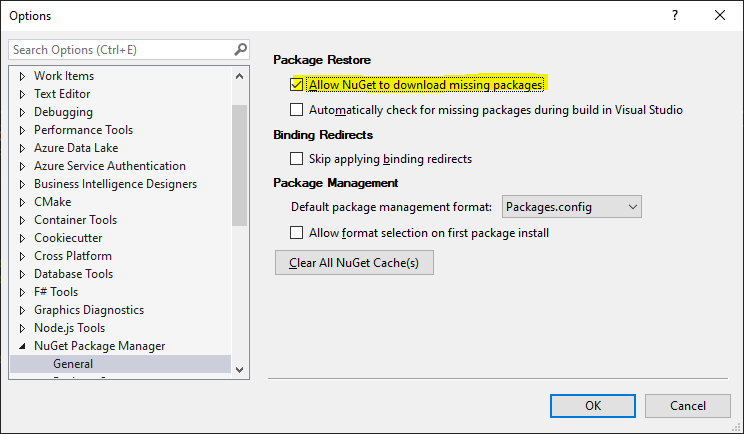
  4. If simply restoring NuGet packages does not work make sure in Tools > Options > NuGet Package Manager > General under Package Restore that the Allow NuGet to download missing packages is checked.

    Then try restore packages, and rebuild after deleting obj and bin folders

  5. Try clearing the Nuget cache.

    Go to Tools > Options > NuGet Package Maneger > General > click on Clear All Nuget Cache(s)

  6. Run command dotnet build.

    dotnet build
    

    It runs the restore by default.