Showing posts with label Laravel. Show all posts

March 17, 2018

XAMPP - PHP - Connect with MS SQL Server 2008 R2 in Laravel

Few days back I got stuck in this situation, I was developing PHP web application with Laravel 5.6 framework, the problems comes when I tried to connect with MS SQL Server rather than MySQL or MariaDB (that comes as default in XAMPP package), It started giving me error like driver not found. Here is how I solved this problem.

First you need to download Microsoft Drivers 4.3 for PHP for SQL Server, then extract the files to some folder. Copy the file php_pdo_sqlsrv_71_ts_x86.dll to php/ext folder (from XAMPP installation's root folder). Now we have to instruct PHP to use this extension.

Open php/php.ini file and move the cursor to extensions section. Add following new line of extension which directs PHP to use SQL Server driver's dll.

extension=php_pdo_sqlsrv_71_ts_x86.dll

We have successfully set-up our PHP environment with MS SQL Server Driver.

Don't forget to restart your server afterwards.

Now you should be able to successfully connect with SQL Server from PHP.

Here comes the Laravel part. You have to specify connection string parameters in .env file of Laravel root folder.

DB_HOST=MY-PC\MYSQL2008R2
DB_PORT=1433
DB_DATABASE=ITEMMASTER
DB_USERNAME=myuser
DB_PASSWORD=mypassword

Or alternative way is to define connection parameters in config/database.php file.

'sqlsrv' => [
            'driver' => 'sqlsrv',
            'host' => 'MY-PC\MYSQL2008R2',
            'port' => '1433',
            'database' => 'ITEMMASTER',
            'username' => 'myuser',
            'password' => 'mypassword',
            'charset' => 'utf8',
            'prefix' => '',
        ],

Now Laravel website should be able to connect with SQL Server database.

I hope you found this post helpful. Do you agree? Share your thoughts in the comments below!

March 26, 2017

How to Install Laravel framework on Windows with XAMPP

In this post, I will explain how to install Laravel framework on Windows, with XAMPP as PHP development environment.

First you have to install XAMPP you can find here: XAMPP Installer

You can install Laravel framework by using Composer. You can download composer from https://getcomposer.org/download/. Composer setup will ask for PHP installation path, in my XAMPP installation it is:

D:\xampp\php\php.exe

You can verify if composer is correctly installed, by executing the command composer in command prompt. If you get an error message, it means it is not added in the Environment Variables, so you have to add the composer.exe folder path in Environment Variables.

composer console

In-case if you have already have installed composer, its better to update it-self to the latest version before moving forward. Run the following command to update composer it-self.

composer self-update

Here we finished installing composer, and now we have to install Laravel. Move to a web-accessible folder, the folder where we usually place all web projects. In my XAMPP installation it is D:\xampp\htdocs

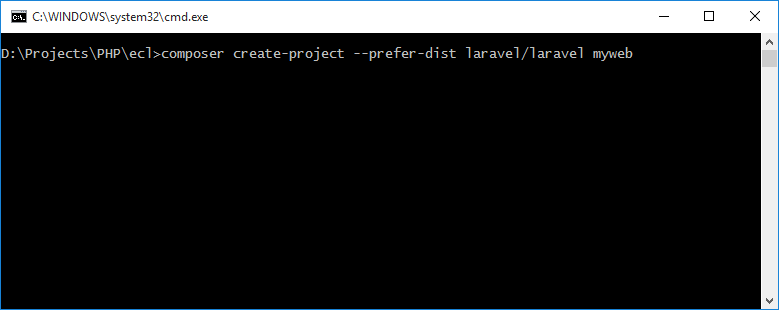
Now go to command prompt, move to the above mentioned web-accessible folder, and execute following command:

composer create-project --prefer-dist laravel/laravel myweb

composer console - install laravel

It will install Laravel framework to a folder named myweb inside the htdocs folder, you can use your own project name in place of myweb (last part in the above command). Then composer will download and configure all the required dependencies, and finally your Laravel basic application is now ready.

If you have PHP installed locally with XAMPP and you may use PHP's built-in development server to serve your application. To make our development envrionment to server this website we have to use the artisan command. This command will start a development server.

You can try access it by localhost path:

http://localhost:8000

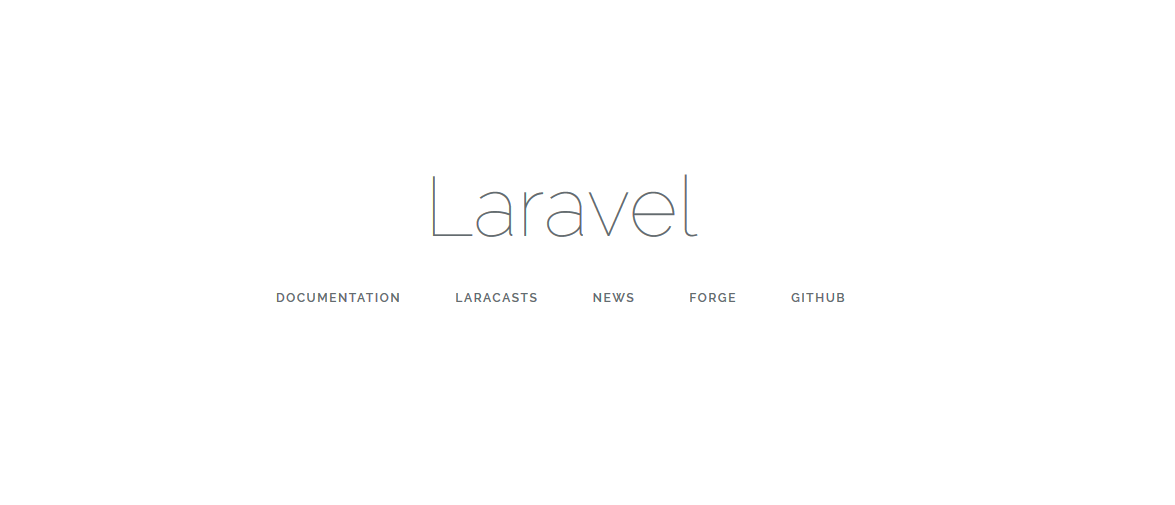
You should see the following home page for Laravel in your browser.

laravel welcome page

And it's done. We have successfully installed Laravel framework on our machine.

References

https://laravel.com/docs