Showing posts with label Visual Studio LightSwitch. Show all posts

November 6, 2018

Unhandled exception of type ‘StackOverflowException’

While working on website project using Visual Studio 2015, I encountered this strange error message:

 An unhandled exception of type ‘System.StackOverflowException’ 
 occurred in System.Runtime.Serialization.dll
StackOverFlow exception

You may notice that if you click on View Detail... link of the exception message, there is no more information is available like stack trace etc.

StackOverFlow exception

I know there is no any complex logic defined in my code-base that could fall in infinite loop and cause StackOverflowException. After searching, I found the real cause of this error, and is not related to my code-base but a feature by Visual Studio know as Browser Link.

From MSDN blog:

Browser Link is just a channel between your Visual Studio IDE and any open browser. This will allow dynamic data exchange between your web application and Visual Studio.

Visual Studio uses this channel to exchange data between web application and Visual Studio, since it will serialze data before exchange, that was leading to StackOverflowException. The solution is just disable this feature.

There are two ways to disable this feature:

  1. From Visual Studio, click on the small down arrow near Refresh Linked Browsers button, from the drop-down options listed, just un-check Enable browser link.

    Enable browser link
  2. Add the following key in web.config appSettings tag.

     <add key=”vs:EnableBrowserLink” value=”false” />
    

Resources:

September 17, 2018

jQuery AJAX failed calling ASP.NET WebMethods

Recently I migrated all code files from ASP.NET Web Application to ASP.NET WebSite (with Framework 4.5.2), because of some requirements we need to move towards website template. At the time I faced this issue, all the ajax calls stopped working. When I placed breakpoint on WebMethod, It was not getting fired.

Here is the WebMethod code:


[WebMethod(EnableSession = true)]
public static string GetPageSummary(string pageid)
{
 string html = "";

 if (!string.IsNullOrEmpty(pageid))
 {
  html = PageHelper.GetPageSummaryHtml(pageid);
 }

 return html;
}

And here is the jquery Ajax call for that method:

$.ajax({

  type: "POST",
  url: "MyPage.aspx/GetPageSummary",
  data: "{ 'pageid':'" + id + "'}",
  contentType: "application/json; charset=utf-8",
  dataType: "json",
  success: function (response) {
   showModelPopupForSummary(response.d)
  },
  error: function (response) {   
   //error-handling code...
  }
 });

It all looks fine and working in previous project, but not with new WebSite project.

After spending way too much time on this, I found out the solution for this.

You have to change enum value for AutoRedirectMode. Go to App_Code/RouteConfig.cs, inside RegisterRoutes() method, you will see this line:

 settings.AutoRedirectMode = RedirectMode.Permanent;

Change the enum value to RedirectMode.Off, final statement would be:

 settings.AutoRedirectMode = RedirectMode.Off;

After changing this all my ajax calls started working successfully.

November 15, 2016

Publishing LightSwitch Application-Web deployment task failed

I used to publish my LightSwitch application to a certain location (my folder name is 'IMS2') in wwwroot directory. I have windows 10 installed with Visual Studio 2012 Ultimate. Everything was working smoothly, until I mistakenly deleted the target folder (IMS2), after that when I try to publish LightSwitch application, it starts giving me following error:

Web deployment task failed. (This access control list is not in canonical form and therefore cannot be modified.) C:\Program Files (x86)\MSBuild\Microsoft\VisualStudio\v11.0\Web\Microsoft.Web.Publishing.targets

After searching and multiple tries I found following two options solved my problem.

  • First, probably the account doesn't have permissions to the target folder (IMS2) you are trying to publish to. Try to publish to a different folder.
  • Second, try reordering the permissions for target folder in IIS Web Server. For this follow these steps:

    1. Open IIS Web Server and select the target website node which is being created by LightSwitch publish wizard.
    2. Right-click on it and select Edit Permissions.

      IIS Edit Permissions

    3. It opens up following dialog box, go to the Security tab, it will prompts that permissions are not incorrectly ordered. Click the OK button.

      IIS Edit Permissions security-tab

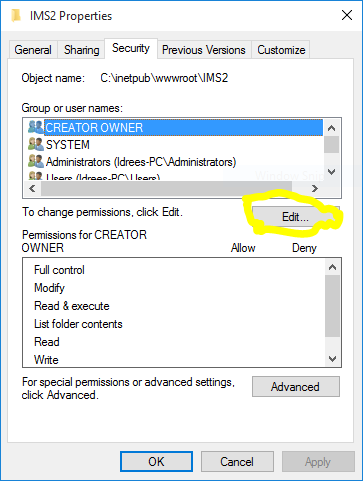
    4. Within the Security tab, Click the Edit button as shown below:

      IIS Edit Permissions security-tab-edit-button

    5. It will show the following popup asking for Reorder permissions. Click on Reorder button.

      IIS Edit Permissions security-tab-reorder

    And its done, now restart your Visual Studio instance and try publish the LightSwitch application. This time it should publish your application successfully.

January 14, 2016

WCF RIA Service - Get the hosted server url

While working on Microsoft LightSwitch Framework with Silverlight client, I encountered a problem, how to find the hosted URL/domain from within WCF RIA Service. Since I am working on local system with application hosted in IIS, and configured my application as virtual directory. So I want to know the address of application's virtual directory.
For example, consider this url:
http://localhost/MyWeb
Where localhost is my host name, and MyWeb is the application's virtual directory alias. There may be more nested pages inside, but we will ignore that, because we only want the url address of virtual directory.
Here is the solution:
We cannot access HttpContext class in silverlight/lightswitch client, so we have to call a proxy function hosted in WCF RIA Service, which will return the current hosted URL to client.
  • HttpContext.Current.Request.Url.Host will give you the host name.
  • HttpContext.Current.Request.ApplicationPath will give you the virtual directory name.
So concatenating these two url string parts will give us the path of virtual directory.
string virtualDirectoryHost = = HttpContext.Current.Request.Url.Host + HttpContext.Current.Request.ApplicationPath;
You might have to add namespace System.Web for HttpContext class or also might have to add reference to System.Web.dll.