Showing posts with label Crystal Reports. Show all posts

May 18, 2018

Crystal Report: could not load assembly

I moved crystal report files from ASP.Net website to Windows Forms Application, and run the application, then I got this error message on loading reports.

Could not load file or assembly 'file:///C:\Program Files\SAP BusinessObjects\Crystal Reports for .NET Framework 4.0\Common\SAP BusinessObjects Enterprise XI 4.0\win32_x86\dotnet1\crdb_adoplus.dll' or one of its dependencies. The system cannot find the file specified.

By adding following settings in app.config file solved this issue for me.

 <startup useLegacyV2RuntimeActivationPolicy="true">
  <supportedRuntime version="v4.0" sku=".NETFramework,Version=v4.0"/>
 </startup>

January 15, 2017

Crystal report document load hangs

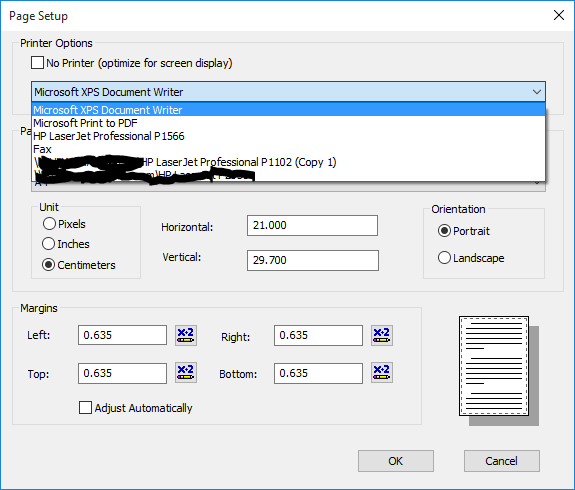
I faced this problem after I made some changes in Crystal Report design. Somehow in Page Setup dialog box, the printer is changed in drop-down list, pointing to my local PC printer. And it was working fine at local PC but getting stuck when crystal report document is calling its Load() method on server.

Here is how I fixed it in my case:

  • Open report in Crystal Report Designer and Right Click
  • Select Design > Page Setup..., Page Setup Dialog box appears.

    crystal report load hang - right click

  • From the printer drop-down list, select Microsoft XPS Document Writer.

    crystal report load hang - right click printerdropdown

  • Click OK button.

Then I deployed the new report file on server, it stars working.

November 7, 2016

Crystal Reports - Arabic/RTL special characters display.

While developing the Crystal Reports for Arabic language, I encountered the problem that if the Arabic text contains special characters like open/close parenthesis "()", square brackets "[]" or angle brackets "<>" etc., then it was not showing that text correctly while printing the reports. In this post I share what I did to fix my problem, in case if some one else encounter similar problem can benefit from.

For example, I have a text-object. Before setting this option, it was displaying text as follows:

arabic text in crystal report

To fix this formatting issue, please follow these steps:

  1. First right click on Text-Object and click on option "Format Object".

  2. Go to Paragraph Tab.

  3. In the Reading order section, check the option Right to Left. As shown below:

    arabic text in crystal report - format editor RTL

And its done. Now it should print the reports with special characters in appropriate state for RTL languages. As my text-object now display this way:

arabic text in crystal report - RTL

October 17, 2016

Crystal Reports - Suppress the Section when SubReport is blank

You might encounter unwanted blank(white space) while printing in Crystal Report which contains one or more sub-report(s). You can follow these steps to get hide a blank section or group, if there are no records in sub-report(s).

  1. First right click on sub-report and click on option "Format Object".

    crystal report - menu format object

  2. Go to "Subreport" tab and set the checkbox "Suppress Blank Subreport" as marked true.

    crystal report - subreport-tab-suppress-blank-subreport

  3. At this stage, sub-report will be hidden, but still you might see blank space on parent report. And for this we have to set one more option for the section or group where you have placed the sub-report. So right click on the Section or Group, and select "Section Expert" option from menu.

    crystal report - group-header-menu-section-expert-item

  4. In this Section Expert dialog box, select the target Group/Section from left hand side, where you have placed sub-report, and then in the "Common" tab on right side, set the checkbox "Suppress Blank Section" as marked true.

    crystal report - expert-common-tab-suppress-blank-section

Now run the main report and you should not see that blank space caused by sub-report(s) having no data.

November 21, 2015

Crystal Report not displayed (with Error: bobj is undefined)

Few days back, I encountered a problem with Crystal Reports while hosted in IIS, it was not getting displayed at-all on ASP.Net page. After searching I got fixed with this, here are the 2 steps you might need to follow in case you face the same problem.
  1. Copy aspnet_client\system_web\4_0_30319\crystalreportviewers13 folder to you website's root directory. This would fix the problem in some cases. If not, try also the second point.
  2. There is already defined a section tag <sectionGroup name="crystalReports"> in web.config, here we need to add one more tag for crystal report viewer aso follows:
    <section name="crystalReportViewer" type="System.Configuration.NameValueSectionHandler" />
    
    
    Put the above line just below the <sectionGroup name="crystalReports"> line, before the closing </sectionGroup> tag.

    Somewhere in the last part of web.config, you will find a rptBuildProvider tag like this:
    <rptBuildProvider>
       <add embedRptInResource="true" />
    </rptBuildProvider>
    
    Just below  this tag, you have to add new tag for crystal report viewer to define the path from where it could find its required files.
    <crystalReportViewer>
       <add key="ResourceUri" value="/crystalreportviewers13" />
    </crystalReportViewer>
    
    Here we have defined the path as we have put the crystalreportviewers13 directory in the root of our website. Also you can place it some where else (i.e. in nested directories) if you want, so you have to change the path accordingly in ResourceUri key-value.
Now you can view your crystal report.