Showing posts with label DotNet. Show all posts

December 26, 2023

Serialize with System.Text.Json.JsonSerializer

The System.Text.Json namespace provides functionality for serializing to and deserializing from JavaScript Object Notation (JSON). When serializing C# objects to json, by default all public properties are serialized.

Lets say we have this User class object we want to serialize:

 class User
 {
     public int Id { get; set; }
     public string Name { get; set; }
     public string? Email { get; set; }
     public string Password { get; set; }
 }

var obj = new User
 {
     Id = 1,
     Name = "Idrees",
     Email = null,
     Password = "123"
 };

If we serialize this object:

string txtJson = Json.JsonSerializer.Serialize(obj);

We will get the this json:

{"Id":1,"Name":"Idrees","Email":null,"Password":"123"}

If we want to skip the Password property, we can use the attribute [JsonIgnore] on that property.

After this change the User class will look like this:

 class User
 {
     public int Id { get; set; }
     public string Name { get; set; }
     public string Email { get; set; }
     [JsonIgnore]
     public string Password { get; set; }
 }

Serializing now will give you this result:

{"Id":1,"Name":"Idrees","Email":null}

Notice that the Password property is no longer serialized.

You can also specify the condition for exclusion by setting the [JsonIgnore] attribute's Condition property.

In above example, we have set the null value for Email property and it is showing null in serialized json text.

To exclude that property we can specify the condition to ignore when it has null value. After this change the User class will become like this:

 class User
 {
     public int Id { get; set; }
     public string Name { get; set; }
     [JsonIgnore(Condition = JsonIgnoreCondition.WhenWritingNull)]
     public string? Email { get; set; }
     [JsonIgnore]
     public string Password { get; set; }
 }

The serialization will remove the Email property and generate this json.

{"Id":1,"Name":"Idrees"}

References:

Repeat a String in C#

C# do not have built-in function, as of C# 12.0, to repeat a string for x number of times.

Lets say we have a string variable:

	string text = "-"; //the string we need to repeat
	int n = 5; // number-of-times to repeat

Here are some ways you can use to repeat a string value:

Using Enumerable.Repeat and string.Concat:

	string result1 = string.Concat(Enumerable.Repeat(text, n));

Using StringBuilder:

	string result2 = new StringBuilder().Insert(0, text, n).ToString();

Using Enumerable.Range, Select with string.Concat

	var repeatedStrings = Enumerable.Range(0, n).Select(i => text);
	string result3 = string.Concat(repeatedStrings);

Using String() constructor

If the required string is single character, you can also use String constructor.

	string result4 = new String('-', n);

November 28, 2023

C# Caller Argument Expression Attribute

The System.Runtime.CompilerServices.CallerArgumentExpressionAttribute enables you to receive the expression passed as an argument. It captures the expression passed for another parameter as a string.

This would be helpful specially in diagnostic libraries which need to provide more details about the expressions passed to arguments. By providing the expression that triggered the diagnostic, in addition to the parameter name, developers have more details about the condition that triggered the diagnostic.

Lets say we have this method to log the method name.

public static void LogMethodName(string name, 
                 [CallerArgumentExpression("name")] string? message = null)
{
   if (string.IsNullOrEmpty(name))
   {
      //we are printing the 'message' which represents the actual expression 
      //being passed for parameter 'name'
      throw new ArgumentException($"Argument validation: <{message}>", name);
   }

   Console.WriteLine($"Method {name} is called.");
}

Here we are calling above method:

public static void RegisterUser()
{
    LogMethodName(nameof(RegisterUser));
}

In RegisterUser method, we are calling LogMethodName with the value as name of RegisterUser. The expression used for name parameter, is injected by the compiler into the message argument.

In this example, the expression passed for the name parameter is nameof(RegisterUser), so the value of message parameter in LogMethodName is "nameof(RegisterUser)"

References:

C# documentation comments - para and cref

C# documentation comments use XML elements to define the structure of the output documentation. It helps to write the information about code and makes it more readable and understandable.

<para> tag

The <para> tag can be used inside a tag, such as <summary>, <remarks>, or <returns>. It allows you to add structure to the text.

Here the <para> is used to add another line (paragraph) in the summary section.

/// <summary>
/// This property will keep the type of project.
///     <para>
///         The Type of project defined in the document.
///     </para>
/// </summary>
public string ProjectType { get; set; }

It will display this information on mouse hover like this:

cref attribute

The cref attribute in an XML documentation tag means "code reference." It specifies that the inner text of the tag is a code element, such as a type, method, or property.

Here the cref attribute is referencing another class which contains constant string values.

/// <summary>
///     <para>
///         Use <see cref="MyNamespace.ProjectStatus"/> class.
///     </para>
/// </summary>
public string Status { get; set; }

On mouse hover it will display like this:

Note that the ProjectStatus will appear as link, and will take you to the definition of class when clicked.

References:

July 18, 2021

Dynamic where clause in Linq to Entities

Suppose you want to write Linq Query to filter the records by multiple parameters.

For example you have following method which will filter records based on the array of paramters specified.

public static List<Product> GetProducts(string[] params)
{
	var myQuery = from p in ctxt.Products
				select p;

	foreach(string param in params)
	{
	   myQuery = myQuery.Where(p => p.Description.Contains(param);
	}

	var prodResult = prod.ToList();

	return prodResult;
}

This query works fine if you need the AND concatenation of all parameter filters, you want to fetch records when all the paramters need to be statisfied.

What if you want to write the same query but with OR concatenation, as if any of the parameter is passed, it should return the records.

Here comes the PredicateBuilder by Pete Montgomery which will work with Linq-to-SQL and EntityFramework as well.

There is another PredicateBuilder by albahari , but it does not work well with EntityFramework.

You can use the following code for PredicateBuilder (copied from Pete Montgomery's post).

/// 
/// Enables the efficient, dynamic composition of query predicates.
/// 
public static class PredicateBuilder
{
    /// 
    /// Creates a predicate that evaluates to true.
    /// 
    public static Expression<Func<T, bool>> True<T>() { return param => true; }
 
    /// 
    /// Creates a predicate that evaluates to false.
    /// 
    public static Expression<Func<T, bool>> False<T>() { return param => false; }
 
    /// 
    /// Creates a predicate expression from the specified lambda expression.
    /// 
    public static Expression<Func<T, bool>> Create<T>(Expression<Func<T, bool>> predicate) { return predicate; }
 
    /// 
    /// Combines the first predicate with the second using the logical "and".
    /// 
    public static Expression<Func<T, bool>> And<T>(this Expression<Func<T, bool>> first, Expression<Func<T, bool>> second)
    {
        return first.Compose(second, Expression.AndAlso);
    }
 
    /// 
    /// Combines the first predicate with the second using the logical "or".
    /// 
    public static Expression<Func<T, bool>> Or<T>(this Expression<Func<T, bool>> first, Expression<Func<T, bool>> second)
    {
        return first.Compose(second, Expression.OrElse);
    }
 
    /// 
    /// Negates the predicate.
    /// 
    public static Expression<Func<T, bool>> Not<T>(this Expression<Func<T, bool>> expression)
    {
        var negated = Expression.Not(expression.Body);
        return Expression.Lambda<Func<T, bool>>(negated, expression.Parameters);
    }
 
    /// 
    /// Combines the first expression with the second using the specified merge function.
    /// 
    static Expression<T> Compose<T>(this Expression<T> first, Expression<T> second, Func<Expression, Expression, Expression> merge)
    {
        // zip parameters (map from parameters of second to parameters of first)
        var map = first.Parameters
            .Select((f, i) => new { f, s = second.Parameters[i] })
            .ToDictionary(p => p.s, p => p.f);
 
        // replace parameters in the second lambda expression with the parameters in the first
        var secondBody = ParameterRebinder.ReplaceParameters(map, second.Body);
 
        // create a merged lambda expression with parameters from the first expression
        return Expression.Lambda<T>(merge(first.Body, secondBody), first.Parameters);
    }
 
    class ParameterRebinder : ExpressionVisitor
    {
        readonly Dictionary<ParameterExpression, ParameterExpression> map;
 
        ParameterRebinder(Dictionary<ParameterExpression, ParameterExpression> map)
        {
            this.map = map ?? new Dictionary<ParameterExpression, ParameterExpression>();
        }
 
        public static Expression ReplaceParameters(Dictionary<ParameterExpression, ParameterExpression> map, Expression exp)
        {
            return new ParameterRebinder(map).Visit(exp);
        }
 
        protected override Expression VisitParameter(ParameterExpression p)
        {
            ParameterExpression replacement;
 
            if (map.TryGetValue(p, out replacement))
            {
                p = replacement;
            }
 
            return base.VisitParameter(p);
        }
    }
}

This will provide extension methods that you can use to write your queries. Here is an example how to write the above query with OR concatenation.

public static List<Product> GetProducts(string[] params)
{
	var myQuery = from p in ctxt.Products
				select p;

	Expression<Func<Product, bool>> x = null;

	int i = 1;

	foreach(string param in params)
	{
	   if (i == )
	   {
	      x = L => L.Description.Contains(param);
	   }
	   else 
	   {
	      Expression<Func<Product, bool>> y = L => L.Description.Contains(param); 
	      x = x.Or(y); 
	   }

   	   i = i + 1;
	}

	myQuery = myQuery.Where(x); 
	
	var prodResult = myQuery.ToList();

	return prodResult;
}

References:

May 9, 2021

How to find the PublicKeyToken for .Net assembly

The public key token is a unique 16-character key that is given to the assembly when it is built and signed in Microsoft Visual Studio.

Often you need to specifiy Public-Key-Token, like when you have to define a provider in connectionString in web.config, or referencing external dlls in web.config, in these cases you need to know the Public-Key-Token for that particular assembly or dll.

There are two ways you can find the Public-Key-Token for an assembly:

Using Powershell

You can execute this statement:

([system.reflection.assembly]::loadfile("C:\FullPath..\Newtonsoft.Json.dll")).FullName

The output will provide the Version, Culture and PublicKeyToken as shown below:

Newtonsoft.Json, Version=13.0.0.0, Culture=neutral, PublicKeyToken=30ad4fe6b2a6aeed

Using the Strong Name tool (SN.exe)

Open the Visual Studio Command Prompt and then point to the dll’s folder you want to get the public key, use the following command,

sn –T Newtonsoft.Json.dll

Or specify the full path of the dll.

sn –T "C:\FullPath..\Newtonsoft.Json.dll"

This will give you the public key token.

Remember this only works if the assembly is strongly signed.

April 18, 2020

How to build query string for System.Net.HttpClient GET Request

In this post I will explain multiple ways to use parameters for HTTP GET Request using System.Net.HttpClient. You don't need to build parameters string by concatenating different values from a name-value collection.

  • First method is to use HttpUtility.ParseQueryString() function.

    var query = HttpUtility.ParseQueryString(string.Empty);
    query["p1"] = "value1";
    query["p2"] = "value2";
    string queryString = query.ToString();
      

    queryString variable contains the parameters in query string format.

  • Another way could be to use UriBuilder class.

    var builder = new UriBuilder("http://example.com");
    builder.Port = -1;
    
    var query = HttpUtility.ParseQueryString(builder.Query);
    query["p1"] = "value1";
    query["p2"] = "value2";
    builder.Query = query.ToString();
    
    string url = builder.ToString();
      

    The url variable will contain both the page URL and query string parameters.

  • If you do not want to include a reference to System.Web in your project, you can use FormDataCollection class by adding reference to System.Net.Http.Formatting.

    var parameters = new Dictionary()
    {
     { "p1", "value1" },
     { "p2", "value2 + SomeOtherValue?" },
    }; 
    
    var queryString = new FormDataCollection(parameters).ReadAsNameValueCollection().ToString();
      

    queryString variable now contains the parameters in query string format.

  • If you are using ASP.Net Core, you can use the QueryHelpers class by first adding reference to Microsoft.AspNetCore.WebUtilities.

    var query = new Dictionary
    {
     ["p1"] = "value1",
     ["p2"] = "value2",
    };
    
    var response = await client.GetAsync(QueryHelpers.AddQueryString("/api/", query));
      

March 12, 2020

C# - Return multiple values from a method

In this post, I will explain different ways to return multiple values from a method without using pre-defined custom struct or class definition.

  • Tuple

    First we can use Tuple return type, for example in below exmaple, Method1() is the method which will return mulitple values, and Method2() will call Method1() to receive the returned value.

    private Tuple<string, int> Method1(long id)
    {
     //get data from DB for given 'id'
     return Tuple.Create("Kamran", 25);
    }
    
    private void Method2()
    {
     var user = Method1(1);
    
     Console.WriteLine($"UserName = {user.Item1}, Age = {user.Item2}");
    }
    

    Tuples with two values have properties named Item1 and Item2. For more properties it will be name in same sequence Item3, Item4, Item5 and so on...

    In above exmaple, In Method2(), the user object(Tuple) has two properties, Item1 and Item2, which will have same data types respectively as defined in Method1()'s returned tuple. In this case, Item1 will be of string type, and Item2 will be of int type.

    Another way to consume/receive tuple value is to use deconstructor syntax. Method2() in above exmaple can also be written like this:

    private void Method2()
    {
     (string username, int age) = Method1(1);
    
     Console.WriteLine($"UserName = {username}, Age = {age}");
    }
    

    Here the returned value from tuple's items will be deconstructed to local variables username and age.

    Second way to create and return tuple is without Tuple keyword. You have to define types for each tuple item in parenthesis.

    private (string , int) Method1(long id) 
    {
     //get data from DB for given 'id'
     return ("Kamran", 25); 
    }
    

    As before, Tuple's items has items with names Item1, Item 2 and so on... If you want to explicitly define elements with your own name, you can use this syntax.

      
    private (string username, int age) Method1(long id)
    {
     return ("Kamran", 25);
    }
    

    Now you can access tuple's items by names.

    private void Method2()
    {
     var user = Method1(1);
    
     Console.WriteLine($"UserName = {user.username}, Age = {user.age}");
    }
    
  • Dynamic Type

    Second way to return multiple values by single method is to use dynamic type object.

    private static dynamic Method1(long id)
    {
     dynamic temp = new System.Dynamic.ExpandoObject();
     temp.Username = "Kamran";
     temp.Age = 25;
     
     return temp;
    }
    

    Consume dynamic type object returned from above method.

    private void Method2()
    {
     var user = Method1(1);
    
     Console.WriteLine($"UserName = {user.Username}, Age = {user.Age}");
    }
    

    Note that you will lose intellisense support and compile time type checking with dynamic type.

  • KeyValuePair

    Another way to return multiple values is to use KeyValuePair.

    private KeyValuePair Method1(long id)
    {
     return new KeyValuePair("Kamran", 25);
    }
    

    Consume KeyValuePair object returned from above method.

    private void Method2()
    {
     var user = Method1(1);
    
     Console.WriteLine($"UserName = {user.Key}, Age = {user.Value}");
    }
    

    Note that KeyValuePair object have only Key and Value parts, so you can use it to return two values maximum. If you want to return more than two values, then KeyValuePair is not a best fit.

November 14, 2019

Deploy ASP.NET Core app in IIS

Hosting models

ASP.Net Core apps support two hosting models.

In-process hosting model

In-process hosting provides improved performance over out-of-process hosting because ASP.NET Core app runs in the same process as its IIS worker process.

Out-of-process hosting model

In this model, ASP.NET Core Module is required for process management, because ASP.NET Core apps run in a process separate from the IIS worker process. The module starts the process for the ASP.NET Core app when the first request arrives and restarts the app if it shuts down or crashes.

Install the .NET Core Hosting Bundle

The ASP.NET Core Module allows ASP.NET Core apps to run behind IIS. You can install .NET Core Hosting Bundle on the hosting system, This bundle installs the .NET Core Runtime, .NET Core Library, and the ASP.NET Core Module.

Create IIS website

  • In IIS Manager, Right-click the Sites folder. Select Add Website from the contextual menu. Enter a Site name and set the Physical path to the app's published folder path. Provide the Binding configuration, enter Host name and click OK.

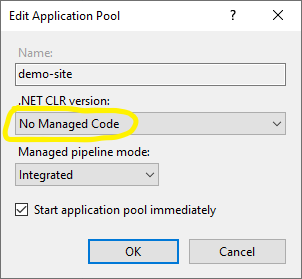
  • Under Application Pools, Right-click the site's app pool and select Basic Settings from the contextual menu. In the Edit Application Pool window, set the .NET CLR version to No Managed Code.

  • For ASP.NET Core 2.2 or later: For a 64-bit (x64) self-contained deployment that uses the in-process hosting model, you need to disable the app pool for 32-bit (x86) processes. For this, In the Actions sidebar of IIS Manager > Application Pools, select Advanced Settings.

  • Locate Enable 32-Bit Applications and set the value to False.

November 8, 2018

Find File-Type by Magic Number of File

In this post, we will find the file type for a file using Magic Number.

What is a Magic Number?

From Wikipedia Magic Number

Magic Number is a constant numerical or text value used to identify a file format or protocol.

Magic number is a hex number occupying a few bytes at the beginning of the file and indicates the type of content, but is not visible to users.

Some users may be thinking why not simply check the file extension to find the file type. Yes, We made the same mistake!

In common scenarios this would be enough to check by file extensions, but we faced this scenario where we can not trust on file extension. The problem we faced during our website's Penetration Testing. There is a form which let user to upload files and it is required that user can only upload PDF files. We added a check based on file extension and made it vulnerable.

During the Penetration Test, our QA team has found this vulnerability, hackers can upload even exe files by renaming the target file to PDF, like some-dangerous-file.exe.pdf. If you are checking by file extension then this file will get successfully uploaded on server.

In order to correctly find the content type of a file, we have to check Magic Number of target file. Since Magic Number can vary in length for different file types, for example, 5 bytes (4D-5A) for exe file and 14 digits (25-50-44-46-2d) for pdf file. In this example, I am reading first 20 bytes to find magic number, you may need to read more bytes for magic number if the file format you are targetting has the magic number with length greater than 20.

Lets move to the code segment, in this sample I have written two functions. IsMagicNumberMatched() is the method doing the real work to check magic number for the file-path passed as parameter. GetAuditorOpinionFromFile() is the wrapper method to test magic numbers for different files. I am writing here 4 common file types exe, pdf, xml and rar. In the end, this method will return status message as string, to display the Magic Number status if it is matched with the parameter we passed.

 public static string GetAuditorOpinionFromFile()
 {
  string filePath_EXE = @"C:\SOME_PATH_TO\MyFile.exe";
  string filePath_PDF = @"C:\SOME_PATH_TO\MyFile.pdf";
  string filePath_XML = @"C:\SOME_PATH_TO\MyFile.xml";
  string filePath_RAR = @"C:\SOME_PATH_TO\MyFile.rar";

  Dictionary numberList = new Dictionary();
  numberList.Add("exe", "4D-5A");
  numberList.Add("pdf", "25-50-44-46-2d");
  numberList.Add("xml", "3c-3f-78-6d-6c-20");
  numberList.Add("rar", "52-61-72-21-1A-07-00");

  StringBuilder sb = new StringBuilder();            
  sb.AppendFormat("File Path: {0}, File Magic No: {1}, IsMatched: {2}", filePath_EXE, numberList["exe"], IsMagicNumberMatched(filePath_EXE, numberList["exe"])).AppendLine();
  sb.AppendFormat("File Path: {0}, File Magic No: {1}, IsMatched: {2}", filePath_PDF, numberList["pdf"], IsMagicNumberMatched(filePath_PDF, numberList["pdf"])).AppendLine();
  sb.AppendFormat("File Path: {0}, File Magic No: {1}, IsMatched: {2}", filePath_XML, numberList["xml"], IsMagicNumberMatched(filePath_XML, numberList["xml"])).AppendLine();
  sb.AppendFormat("File Path: {0}, File Magic No: {1}, IsMatched: {2}", filePath_RAR, numberList["rar"], IsMagicNumberMatched(filePath_RAR, numberList["rar"])).AppendLine();

  return sb.ToString();
 }

 private static bool IsMagicNumberMatched(string filePath, string candidateMagicNo)
 {
  BinaryReader reader = new BinaryReader(new FileStream(Convert.ToString(filePath), FileMode.Open, FileAccess.Read, FileShare.None));

  ////set start position = 0, and read first 20 bytes. for some other with magic number length greater than 20, you may need to read more bytes.
  reader.BaseStream.Position = 0x0;
  byte[] data = reader.ReadBytes(20);

  //close the reader
  reader.Close();

  //convert bytes data to string in hex format
  string string_data_as_hex = BitConverter.ToString(data);

  // substring to select first (n) characters from hexadecimal array
  string currentMagicNo = string_data_as_hex.Substring(0, candidateMagicNo.Length);
  
  return currentMagicNo.ToLower() == candidateMagicNo.ToLower();
 }

I hope you find this post helpful, I welcome your comments or suggestions to help improve this post.

Resources:

November 6, 2018

Unhandled exception of type ‘StackOverflowException’

While working on website project using Visual Studio 2015, I encountered this strange error message:

 An unhandled exception of type ‘System.StackOverflowException’ 
 occurred in System.Runtime.Serialization.dll
StackOverFlow exception

You may notice that if you click on View Detail... link of the exception message, there is no more information is available like stack trace etc.

StackOverFlow exception

I know there is no any complex logic defined in my code-base that could fall in infinite loop and cause StackOverflowException. After searching, I found the real cause of this error, and is not related to my code-base but a feature by Visual Studio know as Browser Link.

From MSDN blog:

Browser Link is just a channel between your Visual Studio IDE and any open browser. This will allow dynamic data exchange between your web application and Visual Studio.

Visual Studio uses this channel to exchange data between web application and Visual Studio, since it will serialze data before exchange, that was leading to StackOverflowException. The solution is just disable this feature.

There are two ways to disable this feature:

  1. From Visual Studio, click on the small down arrow near Refresh Linked Browsers button, from the drop-down options listed, just un-check Enable browser link.

    Enable browser link
  2. Add the following key in web.config appSettings tag.

     <add key=”vs:EnableBrowserLink” value=”false” />
    

Resources:

October 11, 2018

ASP.NET Health Monitoring with Custom Events

In the last post we have created a custom provider to send log data to WCF service client using ASP.NET Health Monitoring feature. We have seen that there are multiple events which we can map to the provider in order to log information about that events. Just to recap here is the list of default events available by ASP.Net Health Monitoring feature.

  • All Events
  • Heartbeats
  • Application Lifetime Events
  • Request Processing Events
  • Infrastructure Errors
  • Request Processing Errors
  • All Audits
  • Failure Audits
  • Success Audits

These events could provide plenty of useful information which can help us to analyze application state if there comes any problem while running in production environment. But there may be the case where you might want to log your own custom event. For example, I want to log a hit event for specific page using this feature rather than use some other logging library or write my own, which further may require extra configuration steps or wrapper classes. Writing your own custom event helps you to log event information with ASP.Net Health Monitoring feature and saves you from that extra effort.

Lets start writing the custom event.

First we have to inherit base class WebRequestEvent found in the namespace System.Web.Management. While calling the base constructor we have to provide eventCode. Note that for custom events we have available event codes starting from 100000. You may find full list of event codes defined as constant fields in WebEventCodes sealed class. The Last EventCode constant defined is:

public const int WebExtendedBase = 100000;

For custom events we have to use codes starting from this number. In this exmaple I am using constant event code variable by adding to 10 to the WebExtendedBase event code value, as:

private const int EVENT_CODE = System.Web.Management.WebEventCodes.WebExtendedBase + 10;

10 is just an arbitrary value, you can pick any number.

If you want to add extra information then you have to write an override of Raise() function, which is not necessary, but in this example I am writing this override to add my custom message, in a class level private variable I am using this variable to add information about current UserId from session variable if present:

private string defaultLocalMessage = "";

Which I want to log alongwith other fields. But this variable could not be directly accessible from WebBaseEvent object's properties which we see in last example, in ProcessEvent() method of custom provider. If we can not directly access additional variables then what is the benefit of using this variable? Well, There is a workaround!

Any additional information holding by custom variables, can be used in another overriden function FormatCustomEventDetails. Although this function returns void, it will not directly return any value but this function is interally called when the provider invokes one of the ToString() methods. So, finally when you call ToString() function for WebBaseEvent object in the function ProcessEvent(), you will get that additional information that you holded in local variables and added to the WebEventFormatter object in another overriden method FormatCustomEventDetails(). When you see the code you will get it more clear.

Here is the complete code listing for custom event class PageHitRequestEvent.

public class PageHitRequestEvent : System.Web.Management.WebRequestEvent
{
    private string defaultLocalMessage = "";
    private const int EVENT_CODE = System.Web.Management.WebEventCodes.WebExtendedBase + 10;

    public PageHitRequestEvent(string eventMessage, object eventSource)
        :
        base(eventMessage, eventSource, EVENT_CODE)
    {
        
    }

    // Raises the PageHitRequestEvent.
    public override void Raise()
    {
        // prepare custom message.
        defaultLocalMessage = "";
        if(HttpContext.Current == null)
        {
            defaultLocalMessage = ", LocalMessage: {Request Context is null";
        }
        else
        {
            defaultLocalMessage += "SessionID: " + HttpContext.Current.Session.SessionID;

            string userId = HttpContext.Current.Session["UserId"] as string;
            if (string.IsNullOrEmpty(userId))
            {
                defaultLocalMessage += ", UserId: (Anonymous)";
            }
            else
            {
                defaultLocalMessage += ", UserId: " + HttpContext.Current.Session["UserId"];
            }
            defaultLocalMessage += "}";
        }
        
        // raise the event. 
        base.Raise();
    }

    public override void FormatCustomEventDetails(WebEventFormatter formatter)
    {
        base.FormatCustomEventDetails(formatter);

        // Add custom data.
        formatter.AppendLine("");

        formatter.IndentationLevel += 1;

        formatter.TabSize = 4;

        formatter.AppendLine("* PageHitRequestEvent Start *");

        // Display custom event information.
        formatter.AppendLine(defaultLocalMessage);
              
        formatter.AppendLine("* PageHitRequestEvent End *");

        formatter.IndentationLevel -= 1;
    }   
    
}

The second step is to raise this event from the source we want to log information about. Lets say we have some critical page in WebForms application or Contoller/Action in MVC Application, and we want to log data every time user hit that URL. Only we have to create the object of custom event class and simply call the Raise() method, which will just trigger the event and any related provider will handle this event as usual.

PageHitRequestEvent myEventObject = new PageHitRequestEvent("some logging message", this);
// raise the event.
myEventObject.Raise();

If you are using the custom provider from my previous post, where I logged detailed information from ToString() method, you will also get the information which you have written to the WebEventFormatter object in FormatCustomEventDetails method.

Finally comes the configuration part. Although in custom provider example, we have mapped eventName="All Events" in rules section, which will allow the corresponding provider to handle all events, so also our custom event we have created in this example.

But also if you want you can separately add custom event and its mapping with the desired provider.

First add the following line in eventMappings tag to define custom event name.

 <add name="My Event" type="PageHitRequestEvent" />

Second add following line in rules tag to map this event to the desired provider.

 <add name="My Event Rule" eventName="My Event" provider="FailedAuthenticationProvider2"
            minInstances="1" maxLimit="Infinite" minInterval="00:00:00" custom="" />
 

Now the given provider should be able to handle the custom event when triggered.

Resources:

October 4, 2018

ASP.NET Health Monitoring using Custom Provider

ASP.NET Health Monitoring is a useful tool for logging error information that could ease diagnosing problems in a deployed application.

I have found this great article at Microsoft for configuring health monitoring feature in web projects.
Logging Error Details with ASP.NET Health Monitoring (C#)

Although builtin providers are more than enough to provide a rich information about the state of application. But there could be a chance you need to create custom provider to log additional information or additional storage option. Like in my case we need to log data in separate database which our application do not have direct access, but we have to call WCF service which would store data in target database. For this requirement I have written my custom provider.

Before proceeding to write code for custom provider, I recommend you to review the above mentioned article for health monitoring which will give you a strong background information.

Lets start writing custom provider class.

public class WCFCustomWebEventProvider : WebEventProvider
{
 //WCF service's client object.
    MiddleWare.ServiceClient _client = new MiddleWare.ServiceClient();
 
    public override void Initialize(String name, System.Collections.Specialized.NameValueCollection config)
    {
        base.Initialize(name, config);
    }

    public override void Flush()
    {

    }

    public override void ProcessEvent(WebBaseEvent raisedEvent)
    {
  //prepare StringBuilder with required information from WebBaseEvent object
        StringBuilder sb = new StringBuilder();
        sb.Append("EventId: " + raisedEvent.EventID + ", ");
        sb.Append("EventTime: " + raisedEvent.EventTime + ", ");
        sb.Append("EventTimeUtc: " + raisedEvent.EventTimeUtc + ", ");
        sb.Append("EventType: " + raisedEvent.GetType().Name + ", ");
        sb.Append("EventSource: " + raisedEvent.EventSource + ", ");
        sb.Append("EventSequence: " + raisedEvent.EventSequence + ", ");
        sb.Append("EventOccurrence: " + raisedEvent.EventOccurrence + ", ");
        sb.Append("EventCode: " + raisedEvent.EventCode + ", ");
        sb.Append("EventDetailCode: " + raisedEvent.EventDetailCode + ", ");
        sb.Append("Message: " + raisedEvent.Message + ", ");
        sb.Append("ApplicationPath: " + WebBaseEvent.ApplicationInformation.ApplicationPath + ", ");
        sb.Append("ApplicationVirtualPath: " + WebBaseEvent.ApplicationInformation.ApplicationVirtualPath + ", ");
        sb.Append("MachineName: " + WebBaseEvent.ApplicationInformation.MachineName + ", ");
        sb.Append("RequestUrl: " + HttpContext.Current.Request.Url.AbsoluteUri + ", ");
        sb.Append("Details: " + raisedEvent.ToString());

  //pass the string to WCF client object.
        _client.CreateLog(sb.ToString());
    }

    public override void Shutdown()
    {

    }
}

I have tried to keep it simpler to meet basic requirements, and avoid additional changes which you may need for performance requirements like make use of buffering.

Here, in the ProcessEvent override method, I prepared a string variable build up the required information from argument WebBaseEvent raisedEvent. Then the final string message containing all required logging details is then passed to the WCF client. Putting all the logging information in a single string variable is obviously not a good approach, I did here only to keep things simple and try to focus on the logic to add custom provider. A better approach could be to split data of our interest in separate variables and update the WCF method to accept multiple parameters.

Here we are done with custom provider's C# code.

I assumed that you have read the above mentioned article, so now I will move to the web.config part.

Add the following healthMonitoring tag inside system.web.

<healthMonitoring enabled="true">
   <providers>
  <add name="WCFCustomWebEventProvider_1" type="WCFCustomWebEventProvider" />
   </providers>
   <rules>
   <add name="All Events Rule" eventName="All Events" provider="WCFCustomWebEventProvider_1"
    minInstances="1" maxLimit="Infinite" minInterval="00:00:00" custom="" />
   </rules>
   <eventMappings>
  <add name="All Events" type="System.Web.Management.WebBaseEvent,System.Web,Version=4.0.0.0,Culture=neutral,PublicKeyToken=b03f5f7f11d50a3a"
   startEventCode="0" endEventCode="2147483647" />
   </eventMappings>
</healthMonitoring>

For simplicity, I am logging All Events, and also removed the configuration sections for bufferModes and profiles which you can add if you need more control over logging. Note that I have mentioned the custom provider WCFCustomWebEventProvider in the type attribute while adding provider.

At-minimum, health monitoring needs you to configure three basic elements.

  1. Providers: You have to specify a provider which will decide the storage target and do the work to store logging information. You can also define multiple providers like for some critical errors, you need to log information in the database and also want to generate an email to the system administrator. In our exmaple, we have used only one custom provider which will store information by calling WCF client method.

  2. EventMappings: It contains all the events names we are interested to log information about. In our example I placed a single event name All Events, which enables the application to log data about all events. If you dont need to log data about all events, you can define the desired events according to the requirements.

    Some other available events are:

    • All Events
    • Heartbeats
    • Application Lifetime Events
    • Request Processing Events
    • Infrastructure Errors
    • Request Processing Errors
    • All Audits
    • Failure Audits
    • Success Audits
  3. Rules: Rule is basically a mapping you have to define, to decide which event should mapped to which provider. In our example, I have defined that eventName="All Events" should be handled by provider="WCFCustomWebEventProvider_1".

September 17, 2018

jQuery AJAX failed calling ASP.NET WebMethods

Recently I migrated all code files from ASP.NET Web Application to ASP.NET WebSite (with Framework 4.5.2), because of some requirements we need to move towards website template. At the time I faced this issue, all the ajax calls stopped working. When I placed breakpoint on WebMethod, It was not getting fired.

Here is the WebMethod code:


[WebMethod(EnableSession = true)]
public static string GetPageSummary(string pageid)
{
 string html = "";

 if (!string.IsNullOrEmpty(pageid))
 {
  html = PageHelper.GetPageSummaryHtml(pageid);
 }

 return html;
}

And here is the jquery Ajax call for that method:

$.ajax({

  type: "POST",
  url: "MyPage.aspx/GetPageSummary",
  data: "{ 'pageid':'" + id + "'}",
  contentType: "application/json; charset=utf-8",
  dataType: "json",
  success: function (response) {
   showModelPopupForSummary(response.d)
  },
  error: function (response) {   
   //error-handling code...
  }
 });

It all looks fine and working in previous project, but not with new WebSite project.

After spending way too much time on this, I found out the solution for this.

You have to change enum value for AutoRedirectMode. Go to App_Code/RouteConfig.cs, inside RegisterRoutes() method, you will see this line:

 settings.AutoRedirectMode = RedirectMode.Permanent;

Change the enum value to RedirectMode.Off, final statement would be:

 settings.AutoRedirectMode = RedirectMode.Off;

After changing this all my ajax calls started working successfully.

May 18, 2018

Crystal Report: could not load assembly

I moved crystal report files from ASP.Net website to Windows Forms Application, and run the application, then I got this error message on loading reports.

Could not load file or assembly 'file:///C:\Program Files\SAP BusinessObjects\Crystal Reports for .NET Framework 4.0\Common\SAP BusinessObjects Enterprise XI 4.0\win32_x86\dotnet1\crdb_adoplus.dll' or one of its dependencies. The system cannot find the file specified.

By adding following settings in app.config file solved this issue for me.

 <startup useLegacyV2RuntimeActivationPolicy="true">
  <supportedRuntime version="v4.0" sku=".NETFramework,Version=v4.0"/>
 </startup>

April 16, 2018

Read web.config file outside the application folder in C#

I have a web application running on my server. And I needed to develop a small utility application which has to do some work in database, and I don't want to write same database credentials or connection strings(and some other additional app-settings) in this new console application, I want it to read settings from same web.config file. But the problem I was facing when I tried this code:

 string filePath = @"D:\MyProject\Web.config";
 Configuration c1 = ConfigurationManager.OpenExeConfiguration(filePath);
 var value1 = c1.AppSettings.Settings["Key1"].Value;

It was not giving any error if it was failed to load the given file path, but also was not working as per my expectations. The Configuration object c1 was loaded fine but when I tried to read ApSettings, it was empty. There was no key/value pairs loaded in this collection object. So trying to read value for Key1 was giving me error as:

 Object reference not set to an instance of an object. 

After wasting much time thinking and searcing on this issue, I found this solution. It worked fine and allowed me read config file from another application.

 string filePath = @"D:\MyProject\Web.config";
 var fileMap = new ExeConfigurationFileMap { ExeConfigFilename = filePath };
 var configuration = ConfigurationManager.OpenMappedExeConfiguration(fileMap, ConfigurationUserLevel.None);
 var value = configuration.AppSettings.Settings["Key1"].Value;

Here I get proper value of Key1, in variable value.

February 24, 2018

ASP.NET MVC - DateTime format for each request

I was being asked this question by one of my colleague, if we can set a DateTime format at some global level so that if we need to display/process date at multiple controllers or views, we should not be worried about a specific format. I came up with this solution, I am sharing here, and welcome your suggestion or comments for any improvements or alternative solutions.

Lets say we need to display and save date in yyyy/MM/dd format. Since our server default format is set to dd/MM/yyyy, and we could not change it because some other applications might get affected, so we decided to set the required format at request level in our ASP.Net MVC application. For this we have to set the date format for current culture for each request, i.e. inside Global.asax.cs, in Application_BeginRequest() event.

Here is the real code which will set the format for current culture with the required one.

protected void Application_BeginRequest(Object sender, EventArgs e) 
{
 CultureInfo newCultureInfo = (CultureInfo)System.Threading.Thread.CurrentThread.CurrentCulture.Clone();
        newCultureInfo.DateTimeFormat.ShortDatePattern = "yyyy/MM/dd";
        //newCultureInfo.DateTimeFormat.LongDatePattern = "yyyy/MM/dd";
        //newCultureInfo.DateTimeFormat.FullDateTimePattern = "yyyy/MM/dd";
        newCultureInfo.DateTimeFormat.DateSeparator = "/";
        Thread.CurrentThread.CurrentCulture = newCultureInfo;
}

Here I am setting the DateTimeFormatInfo object's ShortDatePattern property to "yyyy/MM/dd", in CurrentCulture. Similarly you can set other required properties like LongDatePattern, FullDateTimePattern, ShortTimePattern or LongTimePattern etc. In this way you don't have to set the required date pattern in multiple places.

January 17, 2018

How to validate only numbers in string variable in C#?

There are multiple ways to validate user input string in order to allow only numbers. Lets say we have a string in variable myInput, following are some tips you can use to check if the input string is only contains numbers.

Check for numbers while entering data

If you are using Winforms and want to validate user input, then you can use TextBox's KeyPress event.

private void txtNumber_KeyPress(object sender, KeyPressEventArgs e)
{
  if (!char.IsControl(e.KeyChar) && !char.IsDigit(e.KeyChar) && e.KeyChar != '.')
  {
    e.Handled = true;
  }
}

You can set e.Handled property to true if the character entered is not the desired one, it will suppress that key. You can use similar technique in JavaScript if you are working with ASP.NET.

Check for numbers if you have a string variable

In many cases, if you are not using Winforms application or you may need to inspect the string variable other than the KeyPress event, then you can use one of following methods.

If the string variable contains a value within valid integer range, then you can use int.TryParse() function to check if it has valid integer value.

private bool ValidateNumber(string myInput)
{
    int val;
    if (int.TryParse(myInput, out val))
    {
       return true;
    }
    else
    {
        return false;
    }
}

Note: This method has limitation that the input is being checked only for valid integers, which can have a maximum value of 2,147,483,647. For example, if you need to verify a string of 15 digits, then this method may not give you the desired result.

In order to validate a string with numbers having more digits, we can use the following options:

Char.IsDigit can be used to check if the character at any specified position in string is a digit, and here we are using Linq function All to our string, which will call Char.IsDigit function for each character in the string, and hence can get the required output.

 myInput.All(Char.IsDigit)

A more formal method can be used, i.e. Regular Expressions, which can give you more control in different scenarios. Here we are using Regular Expression "^[0-9]*$" to match for numbers in input string.

 System.Text.RegularExpressions.Regex.IsMatch(myInput, "^[0-9]*$")

I hope you find this post helpful, I welcome your comments or suggestions if you may find any more alternative(s) to validate numeric figures in a string.

December 21, 2017

C# - Using Enumeration types as bit flags

Enumeration allows you to define named integral constants that could be hold by a variable, which can be used in client code to clearly specify the valid values for a variable, because in Visual Studio, IntelliSense lists the defined values. You may have a scenario where you need to hold combination of more than one values, there comes the bit flags. You can use enum type to define bit flags, which allows the enumeration type to store a combination of the values that are defined in the enum list.

You can create bit flags enum by applying the Flags attribute and defining the values by including a named constant with a value of zero that means "no flags are set.", then define remaining items and set the value of each enumeration item to be a power of 2, this enables you to define the combination of more than one values, for example WeekDaysEnum.Friday | WeekDaysEnum.Monday.

Lets start with following enum of week days.

 [Flags]
 public enum WeekDaysEnum : short
 {
  None = 0, //Use None as the name of the flag constant whose value is zero.
  Friday = 1,
  Saturday = 2,
  Sunday = 4,
  Monday = 8,
  Tuesday = 16,
  Wednesday = 32,
  Thursday = 64
 }

In our client code, we can use this enum as:

 private void Test()
 {
  //Initialize with single value 'Friday'
  WeekDaysEnum visitingDays1 = WeekDaysEnum.Friday;
  
  // assign with two flags using bitwise OR.
  WeekDaysEnum visitingDays2 = WeekDaysEnum.Friday | WeekDaysEnum.Monday;
  // Add more flags using bitwise OR.
  visitingDays2 = visitingDays2 | WeekDaysEnum.Thursday;
  
  // Print visitingDays2 variable, it will give you the output : 
  // Selected days are Friday, Monday, Thursday
  // Note that, it will automatically prepare string of comma separated values.
  Console.WriteLine("Selected days are {0}", visitingDays2);
  
  //Similarly you can remove a flag from variable, using bitwise XOR
  visitingDays2 = visitingDays2 ^ WeekDaysEnum.Thursday;
 }

You can use bitwise AND operator to check whether the variable contains a specific flag/value.

 if ((visitingDays2 & WeekDaysEnum.Friday) == WeekDaysEnum.Friday)
 {
  Console.WriteLine("Friday visit is open.");
 }
 else
 {
  Console.WriteLine("Friday visit is not allowed.");
 }

I hope you find this post helpful. You can find more info about the flags attribute and its usage at:

November 26, 2017

C# Winforms - Localized translations using ResourceManager

In this post I will explain how to implement localization in Windows Forms Application using ResourceManager class. We will see an example application with Login form, and change the strings/labels with two different locales (in this example I am using English and Arabic locales). So lets start with this sample Login form.

We want to see the form display with English locale similar to the following screenshot

winforms english translations

And with Arabic locale, the form should display similar to this screenshot

winforms arabic translations

First we have to create separate resource files for separate locales (English and Arabic in this example)

Here is the resource file for English locale Messages.en.resx.

resource english strings

And here is the resource file for Arabic locale Messages.ar.resx.

resource arabic strings

Note that the resource file names are ended with .en and .ar and then the actual file extension .resx. Similarly if you want to create resource files for any other language, you have to create separate resource file with correct file name ending with .[locale-name]

In this example I have placed these two resources files in MyResources folder, solution explorer seems like this:

solution explorer resources

We have written the labels translations in resource files. Its time to write real C# code to use these resource files and display the target translated labels on corresponding controls. For this we are using ResourceManager class found in namespace System.Resources.

Lets create a function which accepts the lang argument, and set labels/controls texts with corresponding string translations from resource files by passing the target CultureInfo argument. To get the desired translated string, we are using helper method rm.GetString().

 private void ChangeLang(string lang)
 {
  CultureInfo ci = new CultureInfo(lang);

  System.Resources.ResourceManager rm = new System.Resources.ResourceManager("WindowsFormsApplication1.MyResources.Messages", typeof(Form1).Assembly);
  lblUserName.Text = rm.GetString("UserName", ci);
  lblPassword.Text = rm.GetString("Password", ci);
  btnLogin.Text = rm.GetString("Login", ci);
  rbEnglish.Text = rm.GetString("English", ci);
  rbArabic.Text = rm.GetString("Arabic", ci);
  this.Text = rm.GetString("Authentication", ci);
 }

Note that ResourceManager constructor accepts argument as the complete assembly name, folder, and resource file name concatenating with dots ("WindowsFormsApplication1.MyResources.Messages" in this case).

Now run the application and you should be able to see the login form displaying the strings/translations based on selected locales.

I hope you have found this article helpful, I welcome your comments and suggestions to analyze this technique, and find if there is any better alternative for implementing localization.