December 12, 2019

Custom Exception throws as Aggregate Exception

I faced this issue while using Custom Exception class with Task Parallel Library. The issue was that when I throw the Custom Exception, it was not getting caught in Custom Exception catch clause. In this post I will explain how you can catch Custom Exception when working with TPL.

Lets start with example code, here is the definition for my Custom Exception class.

class MyCustomException : Exception
{
 //custom code...
}

Here is the function GetOrderCount() with is throwing this Custom Exception from new Task.

public static class UserManager
{
 public static int GetOrderCount(string userName)
 {
  int orderCount = Task.Run(() => {
   if (userName == "test") // any condition, to validate and throw exception...
   {
    throw new MyCustomException();
   }

   return 10; // get value from database...
  }).Result;

  return orderCount;
 }
}

Here is the Controller's action method which is calling previous method GetOrderCount().

[HttpGet("{userName}")]
public IActionResult GetOrderCount(string userName)
{
 try
 {
  int count = UserManager.GetOrderCount(userName);
  
        return Ok(new { OrderCount = count });
 }
 catch (MyCustomException ex1) // this will get ignored
 { 
  //handle for MyCustomException  
 } 
 catch (Exception ex3) // this will handle any exception, including MyCustomException
 {
  //handle for generic exception
 }
}

Here is the issue, I was expecting to run code for MyCustomException handle but it was not getting there. After searching on this, I found that this is the behavior designed because of TPL. If a child task throws an exception, that exception is wrapped in an AggregateException exception before it is propagated to the parent. And chain cycle continues if the parent itself is a child task of some other parent task, i.e. which also wraps its own AggregateException exception before it propagates it back to the calling thread.

In a nutshell, MyCustomException is actually wraps in AggregateException, so I have to place a catch for AggregateException instead of MyCustomException. And to get access MyCustomException object, I have to read the InnerException property of AggregateException.

Here is the updated code after making this change.

[HttpGet("{userName}")]
public IActionResult GetOrderCount(string userName)
{
 try
 {
  int count = UserManager.GetOrderCount(userName);
  
        return Ok(new { OrderCount = count });
 }
 catch (AggregateException ex1) // now this will handle MyCustomException 
 { 
        MyCustomException myException = ex1.InnerException as MyCustomException;
  //other handling logic for MyCustomException...
 } 
 catch (Exception ex3) // this will handle any other exception
 {
  //handle for generic exception
 }
}

This way you can get handle of your Custom Exception.

References:

December 11, 2019

Setup Swagger with .Net Core Web API

Swagger is a open-source framework for describing your API using a common language that everyone can understand, usually in json or yaml formats which could be readable for both humans and machines. Swagger makes it easire for developers to design, build, document, and consume RESTful web services.

It provides the following benefits:

  • Human and machine readable.
  • Easier to understand for less technnical people. Developers and non-developers i.e. product managers and even potential clients can have a better perspective of the design of your API.
  • Adoptable for new changes, because it reflects the changes immediately on your swagger UI without writing special code for swagger. You only make changes to your REST API and swagger will do its part on its own.

Here is how you can implement swagger in .Net Core API project.

  • First you have to install two Nuget paackages.

    • Swashbuckle.AspNetCore
    • Swashbuckle.AspNetCore.Annotations
  • Once you have installed Nuget Packages, then inside ConfigureServices() method in Startup.cs, add this section:

     services.AddSwaggerGen(c =>
     {
      c.OperationFilter();
      c.EnableAnnotations();
      c.SwaggerDoc("v1", new Info
      {
       Title = "My API",
       Version = "v1"
      });
     });
      
  • Inside Configure() method in Startup.cs, we have to tell IApplicationBuilder object to use Swagger:

     app.UseSwagger();
      app.UseSwaggerUI(c =>
      {
       c.SwaggerEndpoint("/swagger/v1/swagger.json", "Sample API");
      });
      

When you run the .Net Core API project, go to the link, adding /swagger/index.html for your base URL. For example:

https://localhost:44319/swagger/index.html

It will display the swagger UI page similar to this.

November 20, 2019

Unable to configure HTTPS endpoint. No server certificate was specified, and the default developer certificate could not be found.

Problem:

During development in Visual Studio, ASP.Net Core WebAPI project started throwing this error.

Unable to configure HTTPS endpoint. No server certificate was specified, and the default developer certificate could not be found. To generate a developer certificate run 'dotnet dev-certs https'. To trust the certificate (Windows and macOS only) run 'dotnet dev-certs https --trust'.

Solution:

As suggested in the error message, we have to run the command dotnet dev-certs https.

  • First close the browser or stop Visual Studio debugger if you are directly running from Visual Studio.
  • Open the command prompt, go to the project's root folder and run this command.

     dotnet dev-certs https --clean
    

    It cleans all HTTPS development certificates from the machine. It will give you following message.

    Cleaning HTTPS development certificates from the machine. A prompt might get displayed to confirm the removal of some of the certificates.

    It may give you a prompt for the removal of certificate, if so, just accept.

  • Second run this command:

     dotnet dev-certs https -t
    

    To make it trust the certificate on the current platform.

November 14, 2019

Deploy ASP.NET Core app in IIS

Hosting models

ASP.Net Core apps support two hosting models.

In-process hosting model

In-process hosting provides improved performance over out-of-process hosting because ASP.NET Core app runs in the same process as its IIS worker process.

Out-of-process hosting model

In this model, ASP.NET Core Module is required for process management, because ASP.NET Core apps run in a process separate from the IIS worker process. The module starts the process for the ASP.NET Core app when the first request arrives and restarts the app if it shuts down or crashes.

Install the .NET Core Hosting Bundle

The ASP.NET Core Module allows ASP.NET Core apps to run behind IIS. You can install .NET Core Hosting Bundle on the hosting system, This bundle installs the .NET Core Runtime, .NET Core Library, and the ASP.NET Core Module.

Create IIS website

  • In IIS Manager, Right-click the Sites folder. Select Add Website from the contextual menu. Enter a Site name and set the Physical path to the app's published folder path. Provide the Binding configuration, enter Host name and click OK.

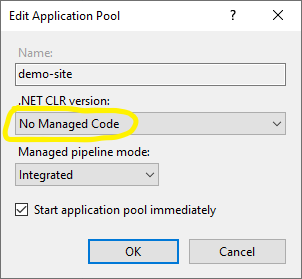
  • Under Application Pools, Right-click the site's app pool and select Basic Settings from the contextual menu. In the Edit Application Pool window, set the .NET CLR version to No Managed Code.

  • For ASP.NET Core 2.2 or later: For a 64-bit (x64) self-contained deployment that uses the in-process hosting model, you need to disable the app pool for 32-bit (x86) processes. For this, In the Actions sidebar of IIS Manager > Application Pools, select Advanced Settings.

  • Locate Enable 32-Bit Applications and set the value to False.

October 24, 2019

What is JSON Web Token

JSON Web Token (JWT) is an open standard used for securely transmitting information between different parties. It helps to accomodate the integrity of the information being passed by using digital signature. Hence the information can be verified and trusted that nobody has tempered the content after being issued by the authority.

Most commonly it is being used for authorization purpose among different web applications. After the user is logged in, each subsequent request will include the JWT, to identity the user and corresponding claims in order to assign access on the server side. Single Sign On is a feature that widely uses JWT.

JSON Web Token structure

JSON Web Tokens consist of three parts separated by dots (.), which are:

  • Header
  • Payload
  • Signature

A JWT typically looks like the following.

 xxxxx.yyyyy.zzzzz

where xxxxx, yyyyy and zzzzz respresents Base64Url encoded values of the header, payload, and signature part of JWT.

Header

Header is the first part of JWON Web Token. It typically consists of two parts: signing algorithm being used for encryption i.e. HMAC SHA256 or RSA, and the type of the token, which is JWT.

For example:

{
  "alg": "HS256",
  "typ": "JWT"
}

Payload

The second part of the token is the payload, which contains the claims. Claims are additional metadata or information we want to transmit. We define claims as simple key-value pairs. There are three types of claims: registered, public, and private claims.

For example, these are the claims usually we store in JWT:

{
  "UserName": "idrees",
  "given_name": "Muhammad",
  "family_name": "Idrees",
  "email": "idrees@test.com"
}

The payload is then Base64Url encoded to form the second part of the JSON Web Token.

Signature

Signature will be generated by combining the encoded JWT Header and the encoded JWT Payload, and then sign it using a strong encryption algorithm, such as HMAC SHA-256 or RSA. A secret key will be used by the server to sign this content, so it will be able to verify existing tokens and sign new ones. Signature's logical calculation looks similar to this code sample:

 $encodedContent = base64UrlEncode(header) + "." + base64UrlEncode(payload);
 $signature = hashHmacSHA256($encodedContent);

To create the signature part you have to take the encoded header, the encoded payload, a secret, the algorithm specified in the header, and sign that.

Review

The output is three Base64-URL strings separated by dots, being more compact when compared to XML-based standards such as SAML.

The following shows a JWT that has the header and payload encoded, and the calculated signature.

eyJhbGciOiJIUzI1NiIsInR5cCI6IkpXVCJ9.eyJqdGkiOiI5NjBiMTExZS04NGQ2LTQxYjAtYmMxNS1lYTFiODU1NjY4ZmQiLCJuYW1laWQiOiIzYWI1ODYyMy0yMTY2LTQwMzktOTA1NS03N2JkZGY5YTYyMWEiLCJVc2VyTmFtZSI6ImlkcmVlcyIsImdpdmVuX25hbWUiOiJNdWhhbW1hZCIsImZhbWlseV9uYW1lIjoiSWRyZWVzIiwiZW1haWwiOiJpZHJlZXNAdGVzdC5jb20iLCJodHRwOi8vc2NoZW1hcy5taWNyb3NvZnQuY29tL3dzLzIwMDgvMDYvaWRlbnRpdHkvY2xhaW1zL3JvbGUiOiJBZG1pbmlzdHJhdG9yIiwibmJmIjoxNTcxODI4OTQ2LCJleHAiOjE1NzE4NzIxNDYsImlzcyI6Imh0dHA6Ly9sb2NhbGhvc3Q6MTY5NjMvIiwiYXVkIjoiaHR0cDovL2xvY2FsaG9zdDoxNjk2My9BcGkvQXV0aCJ9.glPa_uFQrn9wUJt8ZBOMQ64llYjPU98zqwv8Qu56ErU 

When decoded, by a tool like jwt.io, you will be able to see the content of this token:

HEADER: ALGORITHM & TOKEN TYPE
{
  "alg": "HS256",
  "typ": "JWT"
}

PAYLOAD: DATA
{
  "jti": "960b111e-84d6-41b0-bc15-ea1b855668fd",
  "nameid": "3ab58623-2166-4039-9055-77bddf9a621a",
  "UserName": "idrees",
  "given_name": "Muhammad",
  "family_name": "Idrees",
  "email": "idrees@test.com",
  "http://schemas.microsoft.com/ws/2008/06/identity/claims/role": "Administrator",
  "nbf": 1571828946,
  "exp": 1571872146,
  "iss": "http://localhost:16963/",
  "aud": "http://localhost:16963/Api/Auth"
}

Note that, the header and payload is a Base64Url encoded value, it is still in readable form, so do not put confidential information anywhere in the token content.