June 24, 2021

SQL Server - Extended Events to trace Stored Procedure call

Extended Events enable users to collect necessary data to troubleshoot or identify a performance problem. Extended Events is configurable and scalable, because its a lightweight performance monitoring system that uses minimal performance resources.

Extended Events are replacing the deprecated SQL Trace and SQL Server Profiler features

SQL Server Management Studio provides a graphical user interface for Extended Events to create and modify sessions and display and analyze session data.

In this post I will explain how to create a session to collect data for a particular case, for example, trace execution of an SQL Statement.

Lets start creating our first session.

In SSMS, expand server node > Management > Extended Events > Sessions.

Right click on Sessions node and click New Session...

In New Session dialog > General Page > enter Session name, i.e. MySession

On the Events Page, in the textbox under Events library label, type sql_statement. Event list will be filtered.

Select sql_statement_completed, and click > button to move this event to Selected events list.

Click on the Configure button.

Select Filter (Predicate) tab

Click on the first row of grid and select field sqlserver.sql_text

In Operator column, select like_i_sql_unicode_string

In Value column, type the part of query for which you want to collect data. For example, I have written the name of Stored Procedure (MyProcedue) to collect data whenever this SP is called.

On Data Storage Page, In targets grid.

Select type event_file.

In the below pane, provide a file name where it will write the data.

On the Advanced Page, enter 3 seconds for Maximum dispatch latency.

Click OK.

Extended Events Session is created successfully.

By default the Session is not started (it gives you the option on General Page to start the session at creation, we have not selected that option in this exmaple).

We have to start the session manually by right click and select Start Session.

Once started, our Session is able to catch tracing data whenver the event occurs which we have defined in Events Page. In our example, we are checking for the query text that runs the SP MyProcedure. Try executing the SP a few times and see how this data is captured by the Session.

After the desired event is triggered (i.e. ran the SP MyProcedure in our case), Session has captured the data and stored in the target file which we have defined in Data Storage Page.

Expand the session node, and right click on package0.event_file and select View Target Data.

It will display the grid with event name (sql_statement_completed) and the timestamp when this event has occurred. Click any row to see more details about that particular event.

References:

June 1, 2021

SQL Server : Group multiple row values into comma-separated values

You may need to aggregate a column values for a given group of rows in a comma-separated string.

Lets say you have the following table:

DECLARE @tbl TABLE (JobId INT, TechSkills VARCHAR(100))

INSERT @tbl 
VALUES
(1, '.Net Framework'),
(1, 'C#'),
(1, 'PHP'),
(2, '.Net Core'),
(2, 'Laravel'),
(3, 'Angular'),
(3, 'React')

In this table, we have 3 distinct JobIds with multiple technical skills. If we use simple select statement it will return multiple rows for each JobId.

select * from @tbl

You can use subquery with FOR XML PATH to aggregate multiple row values in a single cell value.

SELECT distinct
    JobId,
    (
        SELECT ',' + TechSkills
        FROM @tbl t2
        WHERE t2.JobId = t1.JobId
        FOR XML PATH('')
    ) Concatenated
FROM @tbl t1

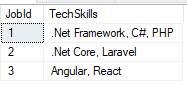
In the output you may notice that each value contains an extra comma at the beginning of the text value.

You can use STUFF function to remove this extra comma at the beginning of text string.

SELECT distinct
    JobId, STUFF(
    (
        SELECT ','+ TechSkills
        FROM @tbl t2
        WHERE t2.JobId = t1.JobId
        FOR XML PATH('')
    ),1,2,'') Concatenated
FROM @tbl t1

May 9, 2021

Oracle “create table as” with null column value

When creating new tables with from a query output you may use "create table as" statement.

Sometimes you need to specify hardcoded null values for some columns. For example, in the following query we want null value for col_3:

create table NewTable as 
select 
   col_1, 
   col_2, 
   null col_3
from OldTable;

If you create an Oracle table using "create as" where one of your fields is null you will get the error:

ORA-01723: zero-length columns are not allowed

To fix this issue, you can cast the null value to a target data type and specify the size of the field where required. For example:

create table NewTable as 
select 
   col_1,
   col_2,
   cast(null as varchar2(100)) col_3,
   cast(null as date) col_4,
   cast(null as number) col_5
from OldTable;

How to find the PublicKeyToken for .Net assembly

The public key token is a unique 16-character key that is given to the assembly when it is built and signed in Microsoft Visual Studio.

Often you need to specifiy Public-Key-Token, like when you have to define a provider in connectionString in web.config, or referencing external dlls in web.config, in these cases you need to know the Public-Key-Token for that particular assembly or dll.

There are two ways you can find the Public-Key-Token for an assembly:

Using Powershell

You can execute this statement:

([system.reflection.assembly]::loadfile("C:\FullPath..\Newtonsoft.Json.dll")).FullName

The output will provide the Version, Culture and PublicKeyToken as shown below:

Newtonsoft.Json, Version=13.0.0.0, Culture=neutral, PublicKeyToken=30ad4fe6b2a6aeed

Using the Strong Name tool (SN.exe)

Open the Visual Studio Command Prompt and then point to the dll’s folder you want to get the public key, use the following command,

sn –T Newtonsoft.Json.dll

Or specify the full path of the dll.

sn –T "C:\FullPath..\Newtonsoft.Json.dll"

This will give you the public key token.

Remember this only works if the assembly is strongly signed.

April 14, 2021

Download Excel File using AJAX in jQuery

The Excel file can be downloaded as BLOB using jQuery AJAX and XmlHttpRequest (XHR) request. Once the file is successfully sent by the server, it could be downloaded using the Response object inside the Success event handler of jQuery AJAX function.

In this post I will explain the sample code to download the Excel file using AJAX in jQuery.

Lets say the following javascript function DownloadFile is called when user clicked the Download button on the web page. It accepts an arbitrary parameter fileId, you can use any other parameter like filename etc.

Inside the DownloadFile function, you can pass the url(or an accessible file path on server) in the URL parameter of the jQuery AJAX call.

Inside the success callback of AJAX function, we can read and download the target file as byte array from the xhr object. We read the response object as Blob.

function DownloadFile(fileId) {
        $.ajax({
            type: "POST",
            url: "MyController/MyAction",
            data: JSON.stringify({ fileId: fileId }),
            contentType: "application/json; charset=utf-8",
            xhrFields: {
                responseType: 'blob'
            },
            success: function (response, status, xhr) {

                var filename = "";
                var disposition = xhr.getResponseHeader('Content-Disposition');

                if (disposition) {
                    var filenameRegex = /filename[^;=\n]*=((['"]).*?\2|[^;\n]*)/;
                    var matches = filenameRegex.exec(disposition);
                    if (matches !== null && matches[1]) filename = matches[1].replace(/['"]/g, '');
                }
                var linkelem = document.createElement('a');
                try {
                    var blob = new Blob([response], { type: 'application/octet-stream' });

                    if (typeof window.navigator.msSaveBlob !== 'undefined') {
                        //   IE workaround for "HTML7007: One or more blob URLs were revoked by closing the blob for which they were created. These URLs will no longer resolve as the data backing the URL has been freed."
                        window.navigator.msSaveBlob(blob, filename);
                    } else {
                        var URL = window.URL || window.webkitURL;
                        var downloadUrl = URL.createObjectURL(blob);

                        if (filename) {
                            // use HTML5 a[download] attribute to specify filename
                            var a = document.createElement("a");

                            // safari doesn't support this yet
                            if (typeof a.download === 'undefined') {
                                window.location = downloadUrl;
                            } else {
                                a.href = downloadUrl;
                                a.download = filename;
                                document.body.appendChild(a);
                                a.target = "_blank";
                                a.click();
                            }
                        } else {
                            window.location = downloadUrl;
                        }
                    }

                } catch (ex) {
                    console.log(ex);
                }
            },
            failure: function (response) {
                console.log(response.d);
            },
            error: function (response) {
                console.log(response.d);
            }
        });         
    }

You can use the same code to download any binary file, like PDF etc.

Since we are creating html anchor element and simulate click to download file at client. Its good idea to also remove the link once you finished working.

In the following jquery code snippet we are creating anchor element, appending to the body tag and at the end we also removed it.

var a = $("<a />");
a.attr("download", fileName);
a.attr("href", link);
$("body").append(a);
a[0].click();
$("body").remove(a);