December 21, 2017

C# - Using Enumeration types as bit flags

Enumeration allows you to define named integral constants that could be hold by a variable, which can be used in client code to clearly specify the valid values for a variable, because in Visual Studio, IntelliSense lists the defined values. You may have a scenario where you need to hold combination of more than one values, there comes the bit flags. You can use enum type to define bit flags, which allows the enumeration type to store a combination of the values that are defined in the enum list.

You can create bit flags enum by applying the Flags attribute and defining the values by including a named constant with a value of zero that means "no flags are set.", then define remaining items and set the value of each enumeration item to be a power of 2, this enables you to define the combination of more than one values, for example WeekDaysEnum.Friday | WeekDaysEnum.Monday.

Lets start with following enum of week days.

 [Flags]
 public enum WeekDaysEnum : short
 {
  None = 0, //Use None as the name of the flag constant whose value is zero.
  Friday = 1,
  Saturday = 2,
  Sunday = 4,
  Monday = 8,
  Tuesday = 16,
  Wednesday = 32,
  Thursday = 64
 }

In our client code, we can use this enum as:

 private void Test()
 {
  //Initialize with single value 'Friday'
  WeekDaysEnum visitingDays1 = WeekDaysEnum.Friday;
  
  // assign with two flags using bitwise OR.
  WeekDaysEnum visitingDays2 = WeekDaysEnum.Friday | WeekDaysEnum.Monday;
  // Add more flags using bitwise OR.
  visitingDays2 = visitingDays2 | WeekDaysEnum.Thursday;
  
  // Print visitingDays2 variable, it will give you the output : 
  // Selected days are Friday, Monday, Thursday
  // Note that, it will automatically prepare string of comma separated values.
  Console.WriteLine("Selected days are {0}", visitingDays2);
  
  //Similarly you can remove a flag from variable, using bitwise XOR
  visitingDays2 = visitingDays2 ^ WeekDaysEnum.Thursday;
 }

You can use bitwise AND operator to check whether the variable contains a specific flag/value.

 if ((visitingDays2 & WeekDaysEnum.Friday) == WeekDaysEnum.Friday)
 {
  Console.WriteLine("Friday visit is open.");
 }
 else
 {
  Console.WriteLine("Friday visit is not allowed.");
 }

I hope you find this post helpful. You can find more info about the flags attribute and its usage at:

November 26, 2017

C# Winforms - Localized translations using ResourceManager

In this post I will explain how to implement localization in Windows Forms Application using ResourceManager class. We will see an example application with Login form, and change the strings/labels with two different locales (in this example I am using English and Arabic locales). So lets start with this sample Login form.

We want to see the form display with English locale similar to the following screenshot

winforms english translations

And with Arabic locale, the form should display similar to this screenshot

winforms arabic translations

First we have to create separate resource files for separate locales (English and Arabic in this example)

Here is the resource file for English locale Messages.en.resx.

resource english strings

And here is the resource file for Arabic locale Messages.ar.resx.

resource arabic strings

Note that the resource file names are ended with .en and .ar and then the actual file extension .resx. Similarly if you want to create resource files for any other language, you have to create separate resource file with correct file name ending with .[locale-name]

In this example I have placed these two resources files in MyResources folder, solution explorer seems like this:

solution explorer resources

We have written the labels translations in resource files. Its time to write real C# code to use these resource files and display the target translated labels on corresponding controls. For this we are using ResourceManager class found in namespace System.Resources.

Lets create a function which accepts the lang argument, and set labels/controls texts with corresponding string translations from resource files by passing the target CultureInfo argument. To get the desired translated string, we are using helper method rm.GetString().

 private void ChangeLang(string lang)
 {
  CultureInfo ci = new CultureInfo(lang);

  System.Resources.ResourceManager rm = new System.Resources.ResourceManager("WindowsFormsApplication1.MyResources.Messages", typeof(Form1).Assembly);
  lblUserName.Text = rm.GetString("UserName", ci);
  lblPassword.Text = rm.GetString("Password", ci);
  btnLogin.Text = rm.GetString("Login", ci);
  rbEnglish.Text = rm.GetString("English", ci);
  rbArabic.Text = rm.GetString("Arabic", ci);
  this.Text = rm.GetString("Authentication", ci);
 }

Note that ResourceManager constructor accepts argument as the complete assembly name, folder, and resource file name concatenating with dots ("WindowsFormsApplication1.MyResources.Messages" in this case).

Now run the application and you should be able to see the login form displaying the strings/translations based on selected locales.

I hope you have found this article helpful, I welcome your comments and suggestions to analyze this technique, and find if there is any better alternative for implementing localization.

October 19, 2017

WCF Service - How to log custom messages using Trace.Write()

In this post I will explain how to write custom logging messages in WCF tracing. I found many articles showing how to enable tracing and can see the default messages when service gets invoked. A good post from MSDN I found is:

https://docs.microsoft.com/en-us/dotnet/framework/wcf/samples/tracing-and-message-logging

It works well and get enabled to view default messages for different WCF methods. But I was facing problem when tried to write custom messages within WCF service.

After searching I found following trick to work for me. This will allow you to write custom messages from coding.

This is how your write log message from C# code using Trace class.

Trace.WriteLine("Custom message goes here...")
// We need to call Flush() method to empty the output buffer for tracing.
Trace.Flush();

Next step is to add a listener in the Listeners Collection to get the receive messages from trace output methods, you can do this adding following lines in your app.config or web.config file.

<configuration>
  <system.diagnostics>
    <trace autoflush="false" indentsize="4">
      <listeners>
        <add name="myListener" type="System.Diagnostics.TextWriterTraceListener" initializeData="C:\Test\WcfTracingExample.log" />
        <remove name="Default" />
      </listeners>
    </trace>
  </system.diagnostics>
</configuration>

I used the path C:\Test\WcfTracingExample.log for log file, you may want to change according to your environment, just make sure that you have write permissions enabled for this directory and file.

You can also use other methods from Trace class apart from Write():

System.Diagnostics.Trace.TraceError("TraceError: GetData");
System.Diagnostics.Trace.TraceInformation("TraceInformation: GetData");
System.Diagnostics.Trace.TraceWarning("TraceWarning: GetData");
System.Diagnostics.Trace.WriteLine("WriteLine: GetData");
// Then call the Flush() method to empty the buffer.
System.Diagnostics.Trace.Flush();

September 17, 2017

SQL Running-Total with reset option

I received this question from one of my colleague and found worth sharing with you. The scenario is that we need to display the running total for amount field which could be done in different ways, as discussed in the post Calculate Running Total. But the requirement slightly differs in this case, because we need to reset running-total field if it encounters any negative value.

Lets start with a simple example.

We have a table @tblItems with some dummy data as follows:

declare @tblItems table(
 ID int identity(1, 1),
 Amount decimal(12, 3),
 RunningTotal decimal(12, 3) default(0)
)

insert into @tblItems(Amount)
values
 (50),
 (20),
 (-100),
 (5),
 (10)
;

Now if you apply the technique Update with Local Variable, as discussed in the post mentioned earlier:

DECLARE @RunningTotal decimal(12, 3) = 0;

UPDATE @tblItems
SET @RunningTotal = RunningTotal = @RunningTotal + Amount
FROM @tblItems;

SELECT ID, Amount, RunningTotal
FROM @tblItems
ORDER BY ID;

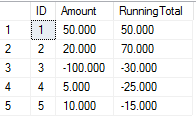
You will get output like this:

running total regular

But the problem is that we need Running Total value as 0 for ID = 3 which in this case is showing -30.

To reset running total value, we can simply add a case statement and return 0 if there is any negative value. So the script will become this:

UPDATE @tblItems
SET @RunningTotal = RunningTotal = case when Amount < 0 then 0 else (@RunningTotal + Amount) end
FROM @tblItems;

And the output will be:

running total with reset

August 13, 2017

HTML5 - Display Arrows for Array Items on Canvas

I received this question from one of my followers, How to Display Data on Canvas. I found this interesting and dedicated some time to work on this requirement. In this post I will explain how did I achieve drawing arrows among array items' positions before and after sorting. Lets start with the same example as posted in this question.

We have the following array along-with a sorting function:

 var selectionSort = function(arr) {
  var j,i;
  var smallest;
  for(j = 0; j < arr.length ; j++)
  {
   smallest = j;
   for(i = j + 1; i < arr.length ; i++)
   {
    if(arr[i] < arr[smallest])
   {
    smallest = i;
   }
   }
  var temp;
  arr[temp] = arr[smallest];
  arr[smallest] = arr[j];
  arr[j] = arr[temp];
 }
 return arr;
 };

 var array = [6,5,4,3,2,1];
 
 array2 = selectionSort(array.slice()).slice();

At this point, we have two arrays, array is the original unsorted array and array2 is the final sorted one. And we want to display both arrays on screen with drawing arrows to show the possible movement of items in positions inside the array.

Let first setup our UI to have canvas containers where we want to display array, here is the HTML I used for this example:

 <body>

  <div id="myocontainer" style="width:70%;margin-left:100px;">
   <div style="width:300px;float: left;">
    <h2>Origianl Array</h2>
    <hr/>
    <h4 style="float:left; margin-left:50px;margin-top:5px;"><u>Index</u></h4>
    <h4 style="float:left; margin-left:40px;margin-top:5px;"><u>Value</u></h4>
    <canvas id="cnvTable1" width="100%" height="100%"></canvas>
   </div>
   <div style="width:300px;float:left; margin-left:300px;">
    <h2>Sorted Array</h2>
    <hr/>
    <h4 style="float:left; margin-left:50px;margin-top:5px;"><u>Index</u></h4>
    <h4 style="float:left; margin-left:40px;margin-top:5px;"><u>Value</u></h4>
    <canvas id="cnvTable2"></canvas>
   </div>
  </div>
  
 </body>

To make things simpler I created a class ArrayItem to represent array items by maintaining their index, value and with two helper functions getPosX, getPosY. getPosX, getPosY respectively describes the position of items being drawn on canvas for that particular item. Here is the code for this class:

 function ArrayItem(indx, val) {
   this.index = indx;
   this.value = val;
   
   this.getPosX = function() {
  return 50;
   };
   
   this.getPosY = function() {
  return this.index * 50;
   };
 }

Since we are drawing objects on screen, in order to have better display on screen I have hard-coded values for positionX and relative value for positionY.

Next part is to create temp array of ArrayItem objects for both array and array2.

 var array1Items = [];
 $.each(array, function( index, value ) {
  array1Items.push(new ArrayItem(index, value));
 });
 
 var array2Items = [];
 $.each(array2, function( index, value ) {
  array2Items.push(new ArrayItem(index, value));
 });

Now comes the tricky part how to display array items on canvas. I write this printArray() function to display items on canvas.

 function printArray(arr1, canvasID, offsetX, offsetY)
 {
  var c = document.getElementById(canvasID);
  var ctx = c.getContext("2d");
  c.width  = 800;
  c.height = 1000;

  ctx.font="30px Georgia";
  var tempX = 50;
  var tempY = 50;
  
  $.each(arr1, function( index, value ) {
   tempX = value.getPosX() + offsetX;
   tempY = value.getPosY() + offsetY;
   
   ctx.fillText(index, tempX, tempY);
   ctx.fillText(value.value, tempX + 70, tempY);
  });
 }

It takes following parameters:

  • arr1: the array we need to print
  • canvasID: container, where we have to print array items
  • offsetX: offset of X position, or left margin from the container.
  • offsetY: offset of Y position, or top margin from the container.

Using this function we can print our arrays:

 printArray(array1Items, "cnvTable1", 10, 50);
 printArray(array2Items, "cnvTable2", 10, 50);

Now comes the final part how to draw arrows showing possible movement among array items before and after sorting process. I have used this jQuery plugin Curved Arrow to draw arrows, you can download this js file and add reference to this along-with jQuery.

 $.each(array1Items, function( index, value ) {
  offsetX = 140;
  offsetY = 170;
  
  var newArrayItem = getArrayItemAfterSort(value.value);
  if(newArrayItem != undefined)
  {
   console.log(index  + " - " + value.value + " - " + newArrayItem.index);
   
   $("#myocontainer").curvedArrow({
    p0x: value.getPosX() + offsetX,
    p0y: value.getPosY() + offsetY,
    p1x: value.getPosX() + offsetX,
    p1y: value.getPosY() + offsetY,
    p2x: newArrayItem.getPosX() + 570 + offsetX,
    p2y: newArrayItem.getPosY() + offsetY,
    lineWidth: 3,
    size:10
   });
   
  }
 }); 
 
 function getArrayItemAfterSort(valueToFind)
 {
  var arrayItem = undefined;
  
  for (i = 0; i < array2Items.length; i++) {
   if(array2Items[i].value == valueToFind)
   {
    arrayItem = array2Items[i];
    break;
   }
  }
  
  return arrayItem;
 }

We are done with drawing arrows for array items. Lets try running this code and with the array items used in this example, you will see output similar to this:

array items

Slightly changing the sequence of array items, i.e. var array = [6,4,1,5,2,3]; , you will see output like this:

array items