June 1, 2021

SQL Server : Group multiple row values into comma-separated values

You may need to aggregate a column values for a given group of rows in a comma-separated string.

Lets say you have the following table:

DECLARE @tbl TABLE (JobId INT, TechSkills VARCHAR(100))

INSERT @tbl 
VALUES
(1, '.Net Framework'),
(1, 'C#'),
(1, 'PHP'),
(2, '.Net Core'),
(2, 'Laravel'),
(3, 'Angular'),
(3, 'React')

In this table, we have 3 distinct JobIds with multiple technical skills. If we use simple select statement it will return multiple rows for each JobId.

select * from @tbl

You can use subquery with FOR XML PATH to aggregate multiple row values in a single cell value.

SELECT distinct
    JobId,
    (
        SELECT ',' + TechSkills
        FROM @tbl t2
        WHERE t2.JobId = t1.JobId
        FOR XML PATH('')
    ) Concatenated
FROM @tbl t1

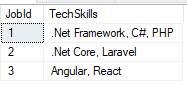
In the output you may notice that each value contains an extra comma at the beginning of the text value.

You can use STUFF function to remove this extra comma at the beginning of text string.

SELECT distinct
    JobId, STUFF(
    (
        SELECT ','+ TechSkills
        FROM @tbl t2
        WHERE t2.JobId = t1.JobId
        FOR XML PATH('')
    ),1,2,'') Concatenated
FROM @tbl t1
May 9, 2021

Oracle “create table as” with null column value

When creating new tables with from a query output you may use "create table as" statement.

Sometimes you need to specify hardcoded null values for some columns. For example, in the following query we want null value for col_3:

create table NewTable as 
select 
   col_1, 
   col_2, 
   null col_3
from OldTable;

If you create an Oracle table using "create as" where one of your fields is null you will get the error:

ORA-01723: zero-length columns are not allowed

To fix this issue, you can cast the null value to a target data type and specify the size of the field where required. For example:

create table NewTable as 
select 
   col_1,
   col_2,
   cast(null as varchar2(100)) col_3,
   cast(null as date) col_4,
   cast(null as number) col_5
from OldTable;

How to find the PublicKeyToken for .Net assembly

The public key token is a unique 16-character key that is given to the assembly when it is built and signed in Microsoft Visual Studio.

Often you need to specifiy Public-Key-Token, like when you have to define a provider in connectionString in web.config, or referencing external dlls in web.config, in these cases you need to know the Public-Key-Token for that particular assembly or dll.

There are two ways you can find the Public-Key-Token for an assembly:

Using Powershell

You can execute this statement:

([system.reflection.assembly]::loadfile("C:\FullPath..\Newtonsoft.Json.dll")).FullName

The output will provide the Version, Culture and PublicKeyToken as shown below:

Newtonsoft.Json, Version=13.0.0.0, Culture=neutral, PublicKeyToken=30ad4fe6b2a6aeed

Using the Strong Name tool (SN.exe)

Open the Visual Studio Command Prompt and then point to the dll’s folder you want to get the public key, use the following command,

sn –T Newtonsoft.Json.dll

Or specify the full path of the dll.

sn –T "C:\FullPath..\Newtonsoft.Json.dll"

This will give you the public key token.

Remember this only works if the assembly is strongly signed.

April 14, 2021

Download Excel File using AJAX in jQuery

The Excel file can be downloaded as BLOB using jQuery AJAX and XmlHttpRequest (XHR) request. Once the file is successfully sent by the server, it could be downloaded using the Response object inside the Success event handler of jQuery AJAX function.

In this post I will explain the sample code to download the Excel file using AJAX in jQuery.

Lets say the following javascript function DownloadFile is called when user clicked the Download button on the web page. It accepts an arbitrary parameter fileId, you can use any other parameter like filename etc.

Inside the DownloadFile function, you can pass the url(or an accessible file path on server) in the URL parameter of the jQuery AJAX call.

Inside the success callback of AJAX function, we can read and download the target file as byte array from the xhr object. We read the response object as Blob.

function DownloadFile(fileId) {
        $.ajax({
            type: "POST",
            url: "MyController/MyAction",
            data: JSON.stringify({ fileId: fileId }),
            contentType: "application/json; charset=utf-8",
            xhrFields: {
                responseType: 'blob'
            },
            success: function (response, status, xhr) {

                var filename = "";
                var disposition = xhr.getResponseHeader('Content-Disposition');

                if (disposition) {
                    var filenameRegex = /filename[^;=\n]*=((['"]).*?\2|[^;\n]*)/;
                    var matches = filenameRegex.exec(disposition);
                    if (matches !== null && matches[1]) filename = matches[1].replace(/['"]/g, '');
                }
                var linkelem = document.createElement('a');
                try {
                    var blob = new Blob([response], { type: 'application/octet-stream' });

                    if (typeof window.navigator.msSaveBlob !== 'undefined') {
                        //   IE workaround for "HTML7007: One or more blob URLs were revoked by closing the blob for which they were created. These URLs will no longer resolve as the data backing the URL has been freed."
                        window.navigator.msSaveBlob(blob, filename);
                    } else {
                        var URL = window.URL || window.webkitURL;
                        var downloadUrl = URL.createObjectURL(blob);

                        if (filename) {
                            // use HTML5 a[download] attribute to specify filename
                            var a = document.createElement("a");

                            // safari doesn't support this yet
                            if (typeof a.download === 'undefined') {
                                window.location = downloadUrl;
                            } else {
                                a.href = downloadUrl;
                                a.download = filename;
                                document.body.appendChild(a);
                                a.target = "_blank";
                                a.click();
                            }
                        } else {
                            window.location = downloadUrl;
                        }
                    }

                } catch (ex) {
                    console.log(ex);
                }
            },
            failure: function (response) {
                console.log(response.d);
            },
            error: function (response) {
                console.log(response.d);
            }
        });         
    }

You can use the same code to download any binary file, like PDF etc.

Since we are creating html anchor element and simulate click to download file at client. Its good idea to also remove the link once you finished working.

In the following jquery code snippet we are creating anchor element, appending to the body tag and at the end we also removed it.

var a = $("<a />");
a.attr("download", fileName);
a.attr("href", link);
$("body").append(a);
a[0].click();
$("body").remove(a); 

Use ClosedXML to write excel file

Office Open XML (also informally known as OOXML) is a zipped, XML-based file format developed by Microsoft for representing spreadsheets, charts, presentations and word processing documents. Starting with the 2007 Microsoft Office system, Microsoft Office uses the XML-based file formats, such as .docx, .xlsx, and .pptx representing Microsoft Word, Microsoft Excel, and Microsoft PowerPoint repectively.

The OpenXML specification is a large and complicated model to implement. Trying to implement this model by your own involves a lot of time and effort. Another option is to use ClosedXML (an open source library created based on OpenXmlSdk) for manipulate OpenXML format files.

ClosedXML is a .NET library for reading, manipulating and writing Excel 2007+ (.xlsx, .xlsm) files. Having user-friendly model, it makes it easier to deal with OpenXML API.

To install ClosedXML, run the following command in the Package Manager Console:

Install-Package ClosedXML

The most important point about ClosedXML is:

ClosedXML allows you to create Excel files without the Excel application. The typical example is creating Excel reports on a web server.

First you have to import the library for Excel classes:

using ClosedXML.Excel;

In the following code snippet, we are creating a new worksheet Sheet1 and writing the text Hello World! on the cell A1, then save the file as HelloWorld.xlsx:

using (var workbook = new XLWorkbook())
{
    var worksheet = workbook.Worksheets.Add("Sheet1");
    worksheet.Cell("A1").Value = "Hello World!";
    workbook.SaveAs("HelloWorld.xlsx");
}

Change the font for the whole sheet:

worksheet.Style.Font.FontName = "Calibri";

Change the font style and color for a particular cell:

worksheet.Cells("A1").Style.Font.FontSize = 14;
worksheet.Cells("A1").Style.Font.Bold = true;
worksheet.Cells("A1").Style.Font.FontColor = XLColor.White;

Select the range and fill background color:

var range1 = worksheet.Ranges("A1:A25,B1:B25");
range1.Style.Fill.BackgroundColor = XLColor.FromHtml("#556B2F");

Adjusts the width of all columns based on its contents.

worksheet.Columns().AdjustToContents();

These are few examples which demonstrates the basic functionality ClosedXML supports for Excel files.

For official project site and Nuget Package, please visit the github and nuget sites:

References(s):