April 18, 2020

How to solve SQL Server Error 1222 i.e Unlock a SQL Server table

I faced this error while working with transactions in MS SQL Server with a time consuming query. I was inserting data into a table from a select query which was fetching data from a Linked Server. Because of huge data load the server, query was taking too much time, so I finally stopped the query manually. This was the point which caused the SQL Server Error 1222.

 Lock request time out period exceeded

Since the table was being stuck in a transaction, and I was unable to perform any (read/write) operation on the target table.

Here is the solution I found worked for me.

In the SQL Server Management Studio, first find out details of the active transaction. Execute following command

 DBCC OPENTRAN

You will get the detail of the active transaction, including SPID.

If you want to get the details about the SPID, you can use following commands:

 EXEC sp_who2 <SPID>
 EXEC sp_lock <SPID>

This SPID is the one which you have to kill to unlock the table being stuck in the transaction.

For example the SPID in my case is 65. Kill that process using the following command:

 KILL 65

This will unlock the table and you can perform operations on this table without locking error.

March 22, 2020

Tuple Compile Error - TupleElementNamesAttribute cannot be found

Problem:

The first time you use tuples in C# Projects, you may encountered this error:

Cannot define a class or member that utilizes tuples because the compiler required type 'System.Runtime.CompilerServices.TupleElementNamesAttribute' cannot be found.

Solution:

All you have to do is install System.ValueTuple nuget package.

From Package Manager Console, run this command:

Install-Package System.ValueTuple -Version 4.5.0

You may want to change the version if required.

Or from Manage NuGet Packages... tab, search for System.ValueTuple and Install.

March 12, 2020

C# - Return multiple values from a method

In this post, I will explain different ways to return multiple values from a method without using pre-defined custom struct or class definition.

  • Tuple

    First we can use Tuple return type, for example in below exmaple, Method1() is the method which will return mulitple values, and Method2() will call Method1() to receive the returned value.

    private Tuple<string, int> Method1(long id)
    {
     //get data from DB for given 'id'
     return Tuple.Create("Kamran", 25);
    }
    
    private void Method2()
    {
     var user = Method1(1);
    
     Console.WriteLine($"UserName = {user.Item1}, Age = {user.Item2}");
    }
    

    Tuples with two values have properties named Item1 and Item2. For more properties it will be name in same sequence Item3, Item4, Item5 and so on...

    In above exmaple, In Method2(), the user object(Tuple) has two properties, Item1 and Item2, which will have same data types respectively as defined in Method1()'s returned tuple. In this case, Item1 will be of string type, and Item2 will be of int type.

    Another way to consume/receive tuple value is to use deconstructor syntax. Method2() in above exmaple can also be written like this:

    private void Method2()
    {
     (string username, int age) = Method1(1);
    
     Console.WriteLine($"UserName = {username}, Age = {age}");
    }
    

    Here the returned value from tuple's items will be deconstructed to local variables username and age.

    Second way to create and return tuple is without Tuple keyword. You have to define types for each tuple item in parenthesis.

    private (string , int) Method1(long id) 
    {
     //get data from DB for given 'id'
     return ("Kamran", 25); 
    }
    

    As before, Tuple's items has items with names Item1, Item 2 and so on... If you want to explicitly define elements with your own name, you can use this syntax.

      
    private (string username, int age) Method1(long id)
    {
     return ("Kamran", 25);
    }
    

    Now you can access tuple's items by names.

    private void Method2()
    {
     var user = Method1(1);
    
     Console.WriteLine($"UserName = {user.username}, Age = {user.age}");
    }
    
  • Dynamic Type

    Second way to return multiple values by single method is to use dynamic type object.

    private static dynamic Method1(long id)
    {
     dynamic temp = new System.Dynamic.ExpandoObject();
     temp.Username = "Kamran";
     temp.Age = 25;
     
     return temp;
    }
    

    Consume dynamic type object returned from above method.

    private void Method2()
    {
     var user = Method1(1);
    
     Console.WriteLine($"UserName = {user.Username}, Age = {user.Age}");
    }
    

    Note that you will lose intellisense support and compile time type checking with dynamic type.

  • KeyValuePair

    Another way to return multiple values is to use KeyValuePair.

    private KeyValuePair Method1(long id)
    {
     return new KeyValuePair("Kamran", 25);
    }
    

    Consume KeyValuePair object returned from above method.

    private void Method2()
    {
     var user = Method1(1);
    
     Console.WriteLine($"UserName = {user.Key}, Age = {user.Value}");
    }
    

    Note that KeyValuePair object have only Key and Value parts, so you can use it to return two values maximum. If you want to return more than two values, then KeyValuePair is not a best fit.

February 23, 2020

HTTP Error 500.30–ANCM In-Process Start Failure

I faced following error when I deployed .Net Core Web Application to my local IIS server.

 HTTP Error 500.30–ANCM In-Process Start Failure 

It doest not provide a direct cause and can be very frustrating when trying to get that app ready for production.

While searching for this, I found a number of common causes for this error:

  • The application failed to start
  • The application started but then stopped
  • The application started but threw an exception during startup

These are some options you can try to find out the root cause for this issue.

  1. Attach a debugger to the application process.

  2. Check the event log for error messages from Event Viewer. Go to Event Viewer > Windows Logs > Application. You will found an Error with Source column's value as IIS AspNetCore Module, IIS Express AspNetCore Module, IIS AspNetCore Module V2 or IIS Express AspNetCore Module V2.

  3. Enable logging the application through stdout messages. Go to project's root folder, open web.config file. You will find the aspNetCore tag:

    <aspNetCore processPath="dotnet" arguments=".\MyApp.dll" stdoutLogEnabled="false" stdoutLogFile=".\logs\stdout" hostingModel="InProcess" />
      

    Set stdoutLogEnabled value to true, and put logs folder path in stdoutLogFile. Ensure that your application pool’s identity account has write permissions to the logs folder. After you make a request to the application, look in the logs folder and check the latest log file for errors.

    Once you find the root cause of the problem, make sure to reset stdoutLogEnabled to false in the web.config file to turn off logging.

  4. Open the command prompt and navigate to the application's root folder, and execute the application's assembly with dotnet.

    dotnet .\<assembly_name>.dll 
      

    Substitute <assembly_name> with the name of the application.

    If there is any error that occurred at the startup of the application, it will be written in the console output.

    Also try making a request to the web app by navigating to the url in browser. If there is any error in processing the request, it will be displayed on console output. If there are no errors, the problem is might be related to the hosting configuration and not the application.

February 20, 2020

Assets file project.assets.json not found. Run a NuGet package restore

In Visual Studio 2017, while working with .Net Core Web Applications, I encountered this error:

Assets file project.assets.json not found. Run a NuGet package restore

While searching for this, I found a number of options you can try to fix this issue.

  1. Simplest of the solution could be just to close and re-open the Visual Studio, in some cases this might help.

  2. Another thing could be simply delete the bin and obj folders, clean and rebuild the solution.

  3. Go to Tools > NuGet Package Manager > Package Manager Console, and run this command:

    dotnet restore
    

    Or for specific project:

    dotnet restore [project or solution name]
    

    Executing dotnet restore adds all the required files.

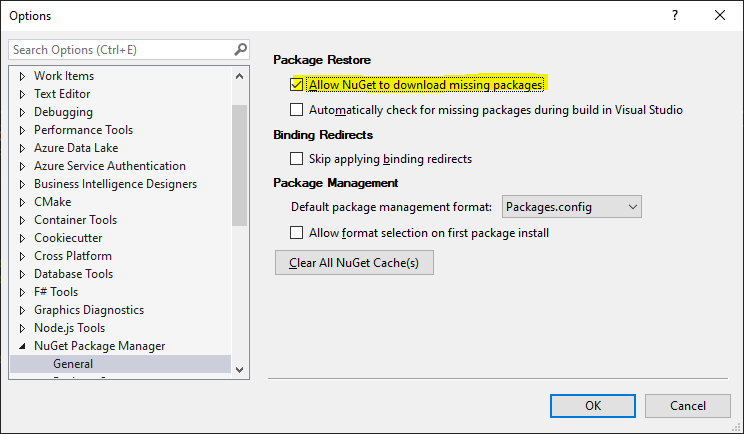
  4. If simply restoring NuGet packages does not work make sure in Tools > Options > NuGet Package Manager > General under Package Restore that the Allow NuGet to download missing packages is checked.

    Then try restore packages, and rebuild after deleting obj and bin folders

  5. Try clearing the Nuget cache.

    Go to Tools > Options > NuGet Package Maneger > General > click on Clear All Nuget Cache(s)

  6. Run command dotnet build.

    dotnet build
    

    It runs the restore by default.